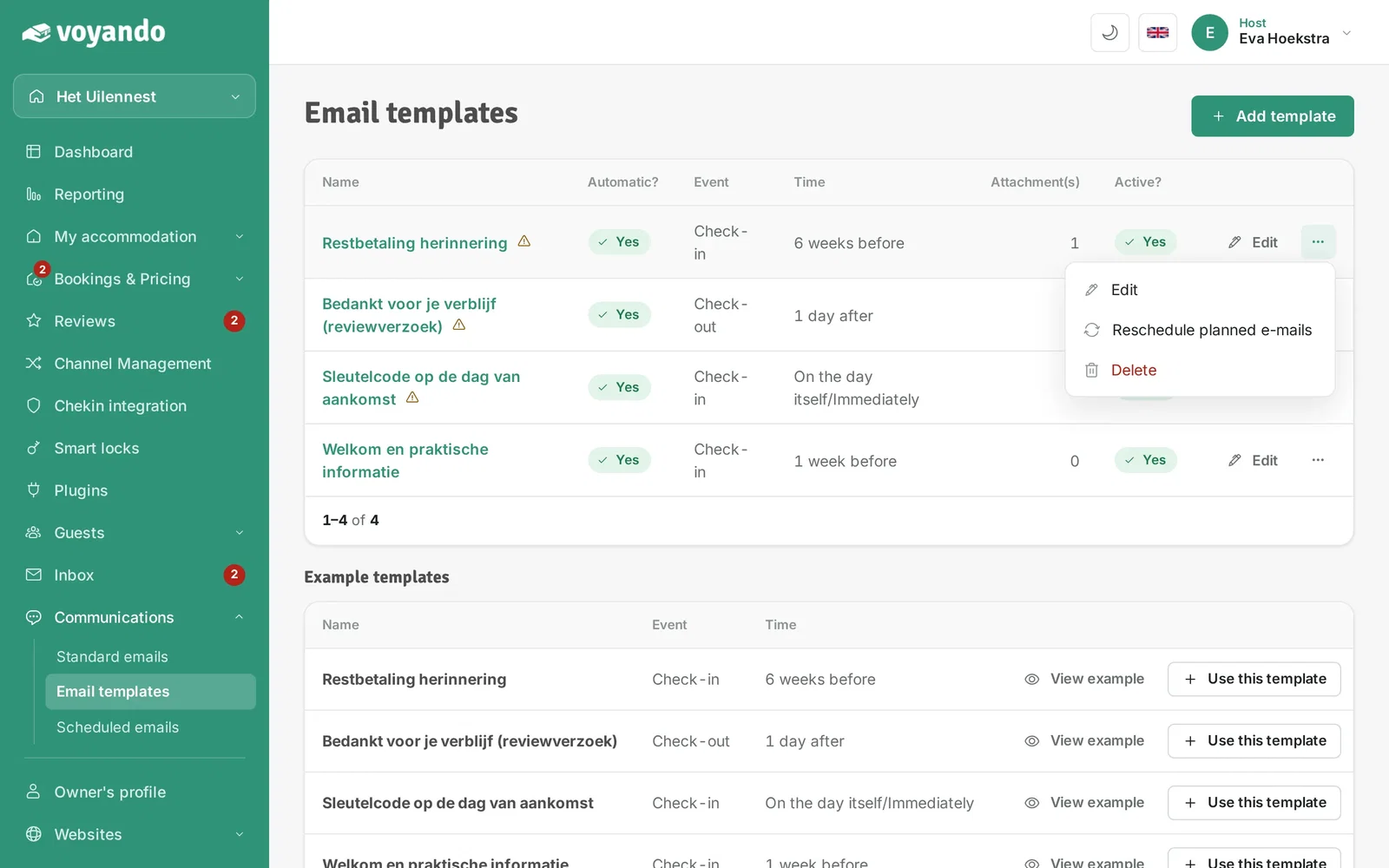
Do you send every guest the same information about arrival, directions or departure? With an automated e-mail you write that text once. Voyando then sends it for every booking at the moment you choose, with the guest's name and the right dates already filled in. Read more about automated e-mails for your guests.
Step by step
-
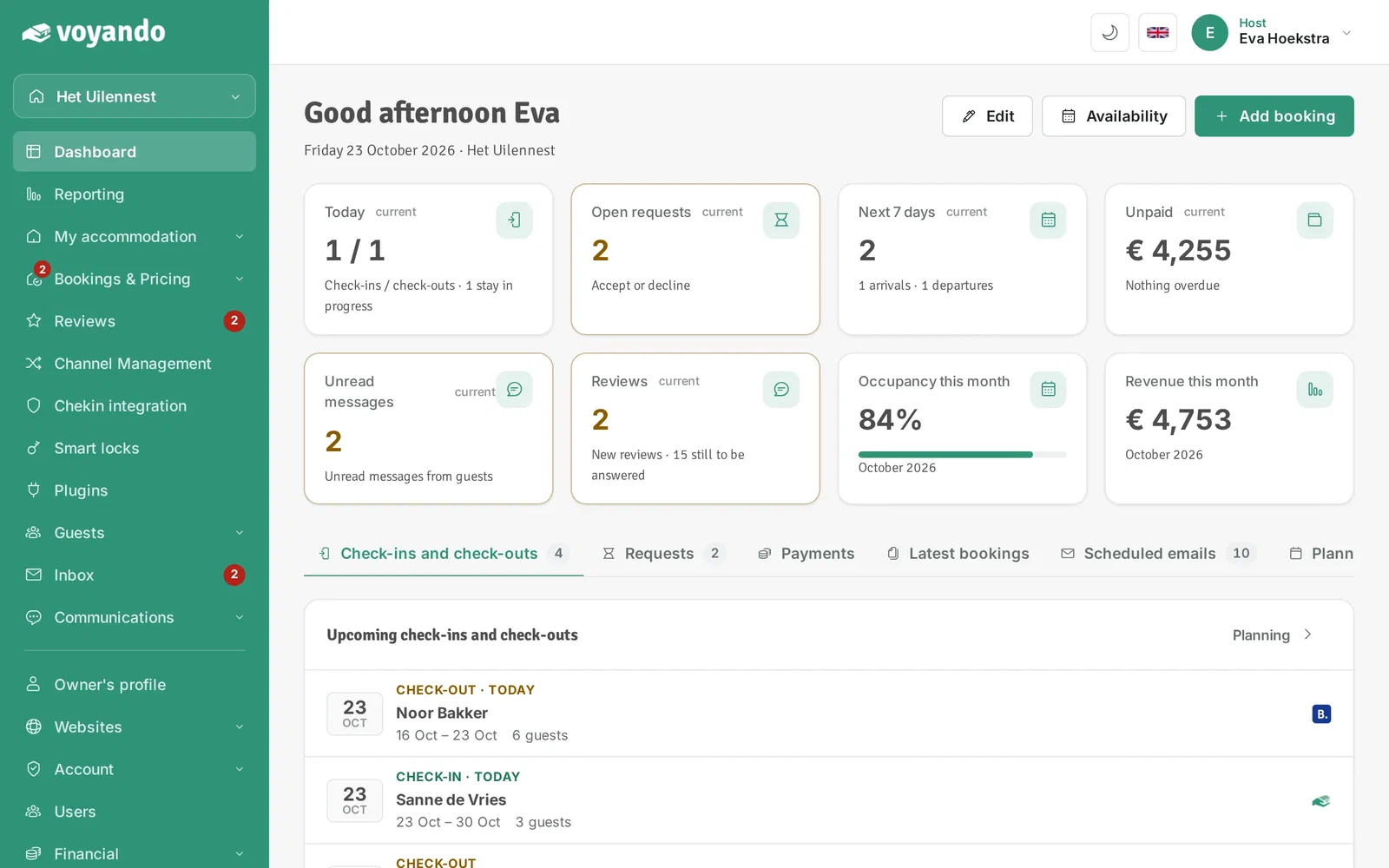
Step 1: Go to your dashboard.
-
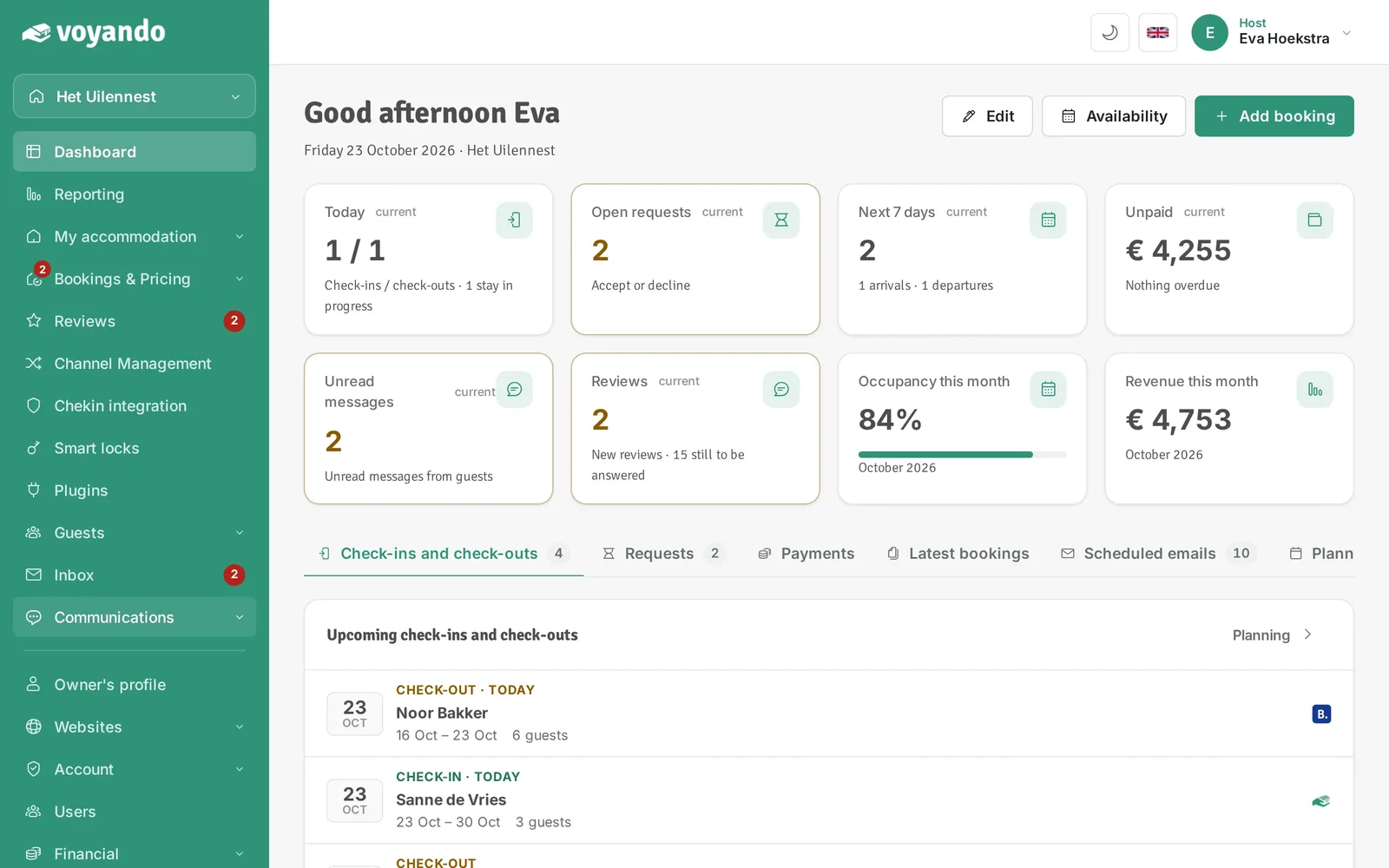
Step 2: Click Communications in the menu.
-
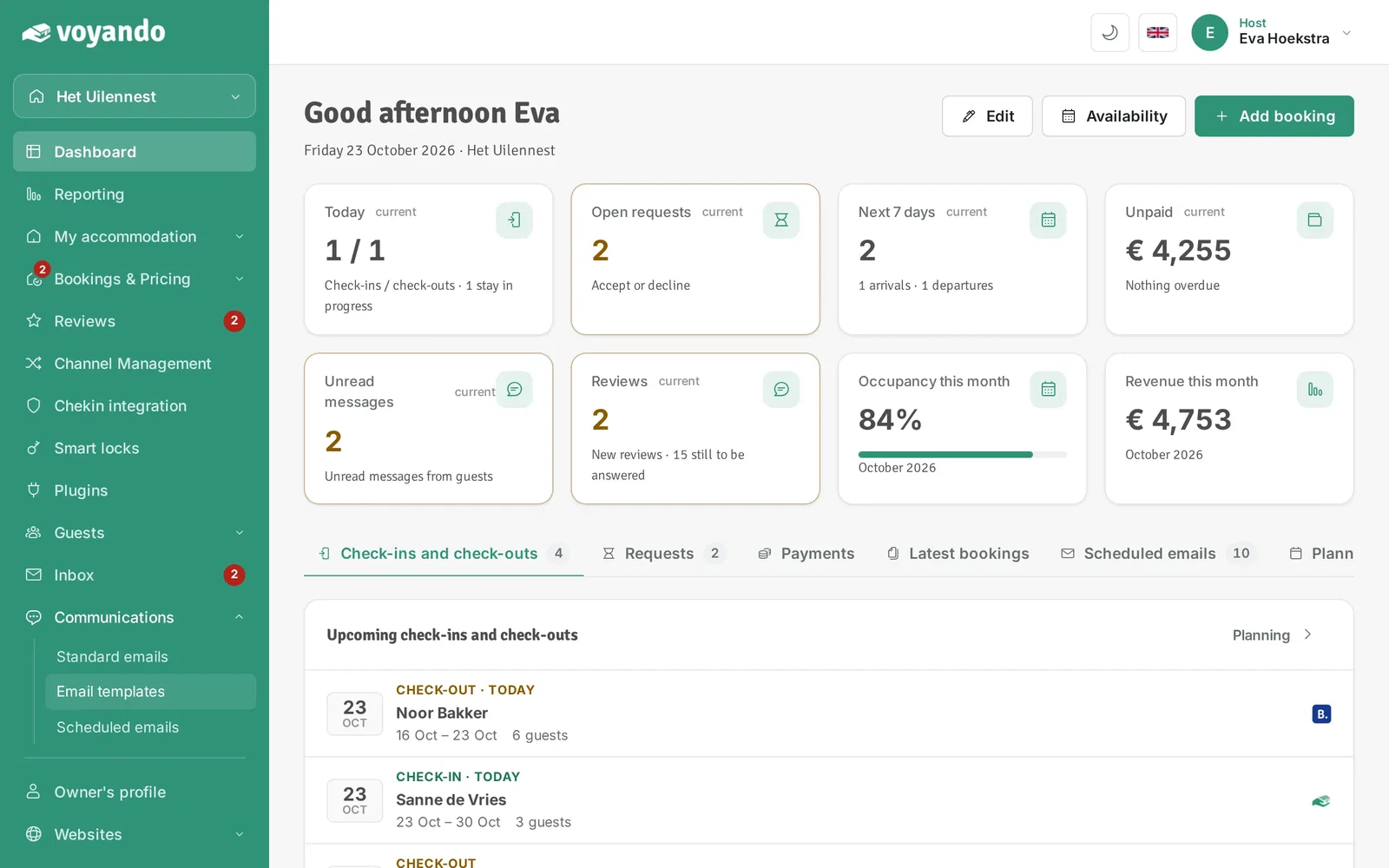
Step 3: Click Email templates.
-
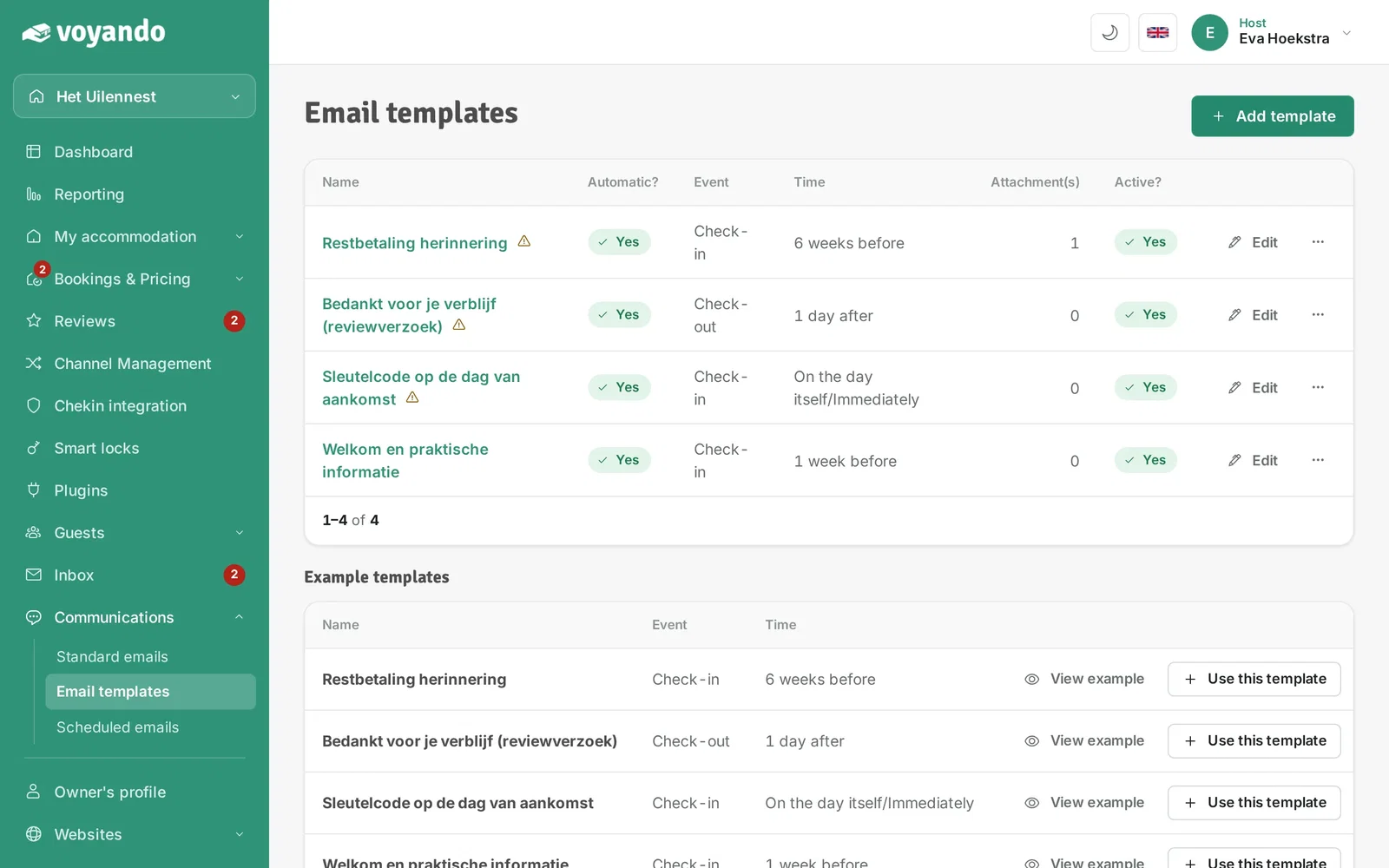
Step 4: Click Add template.
-
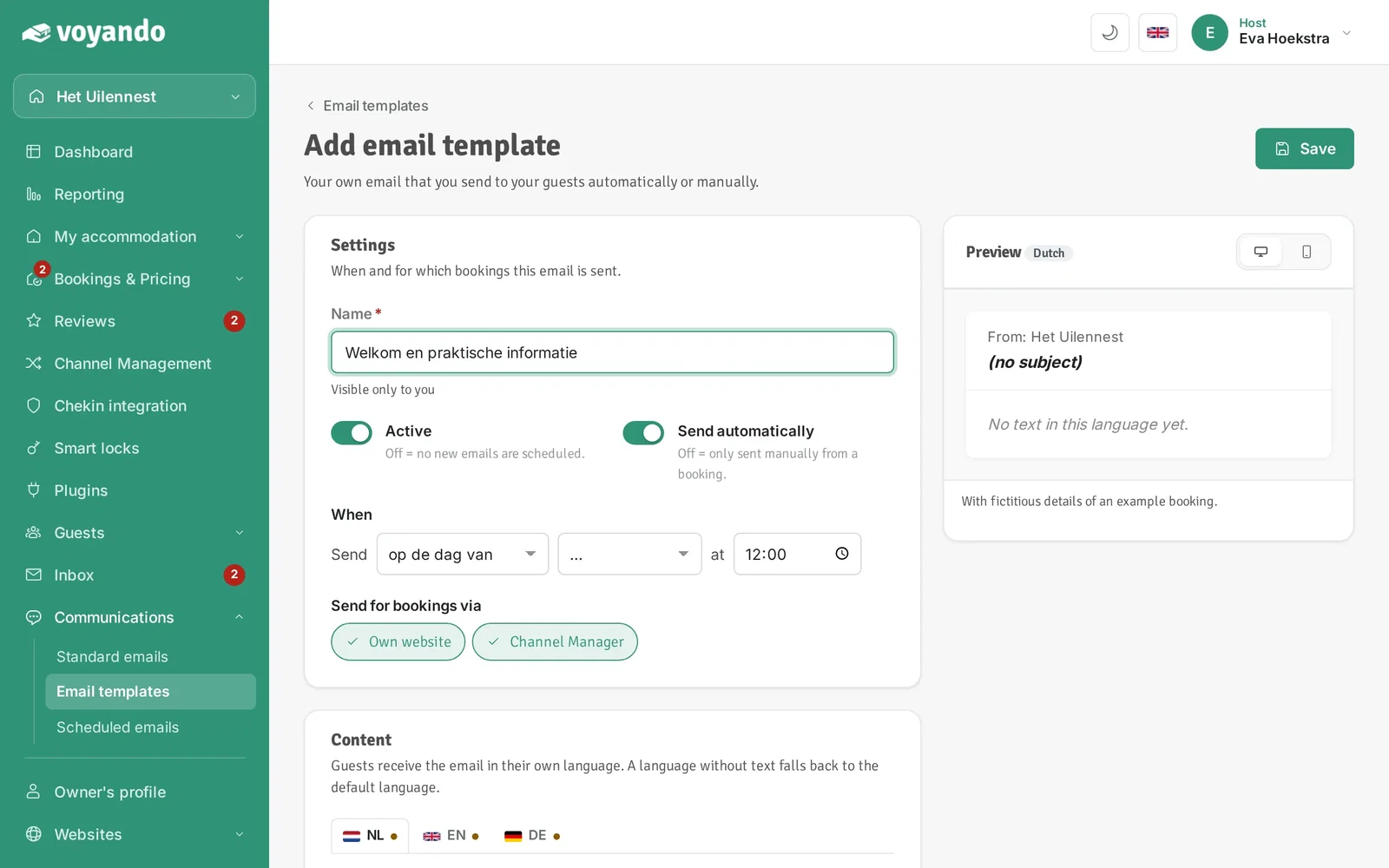
Step 5: Give the template a name under Name. Only you see this name, guests don't.
-
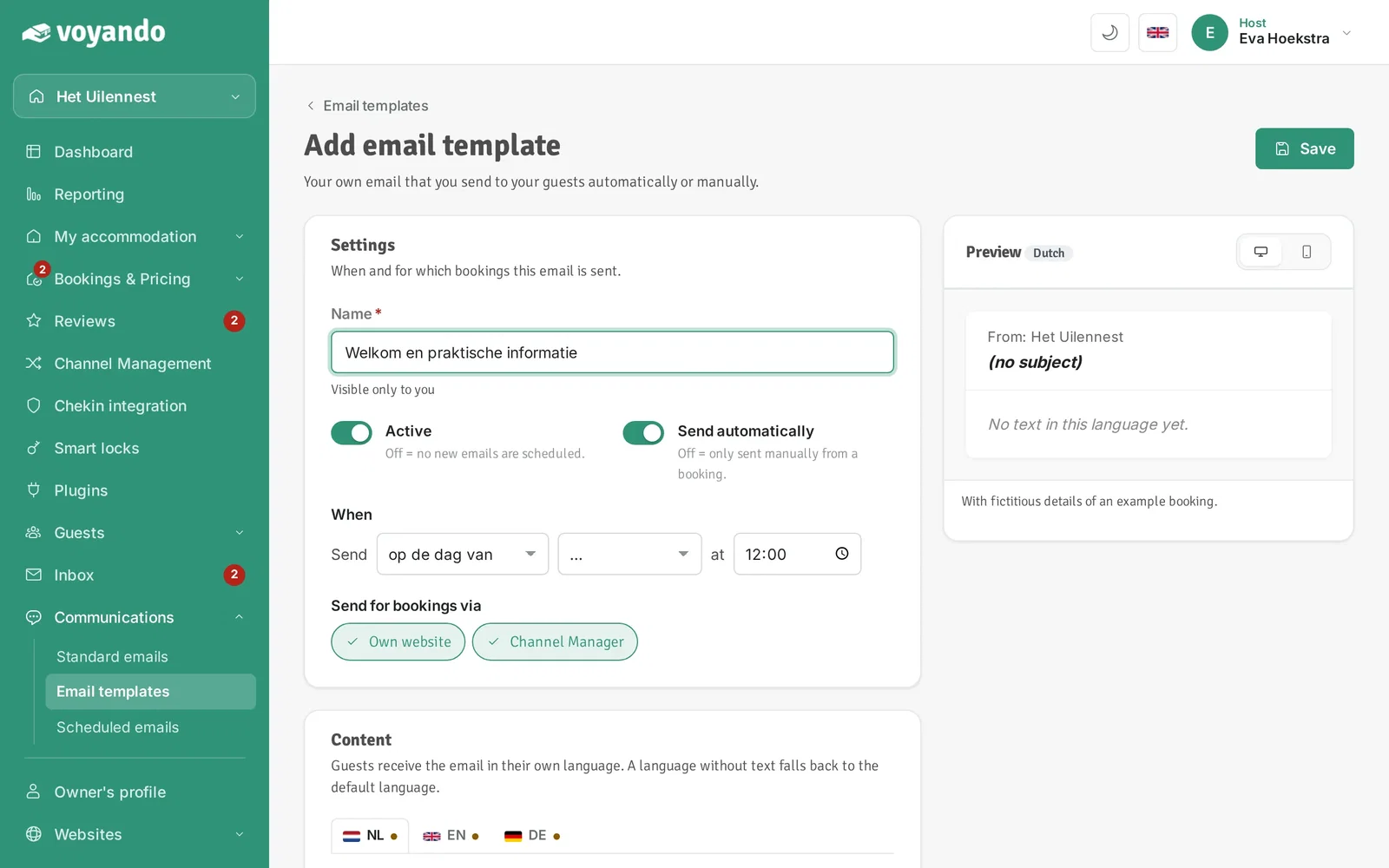
Step 6: Keep Send automatically switched on, so Voyando sends the email by itself.
-
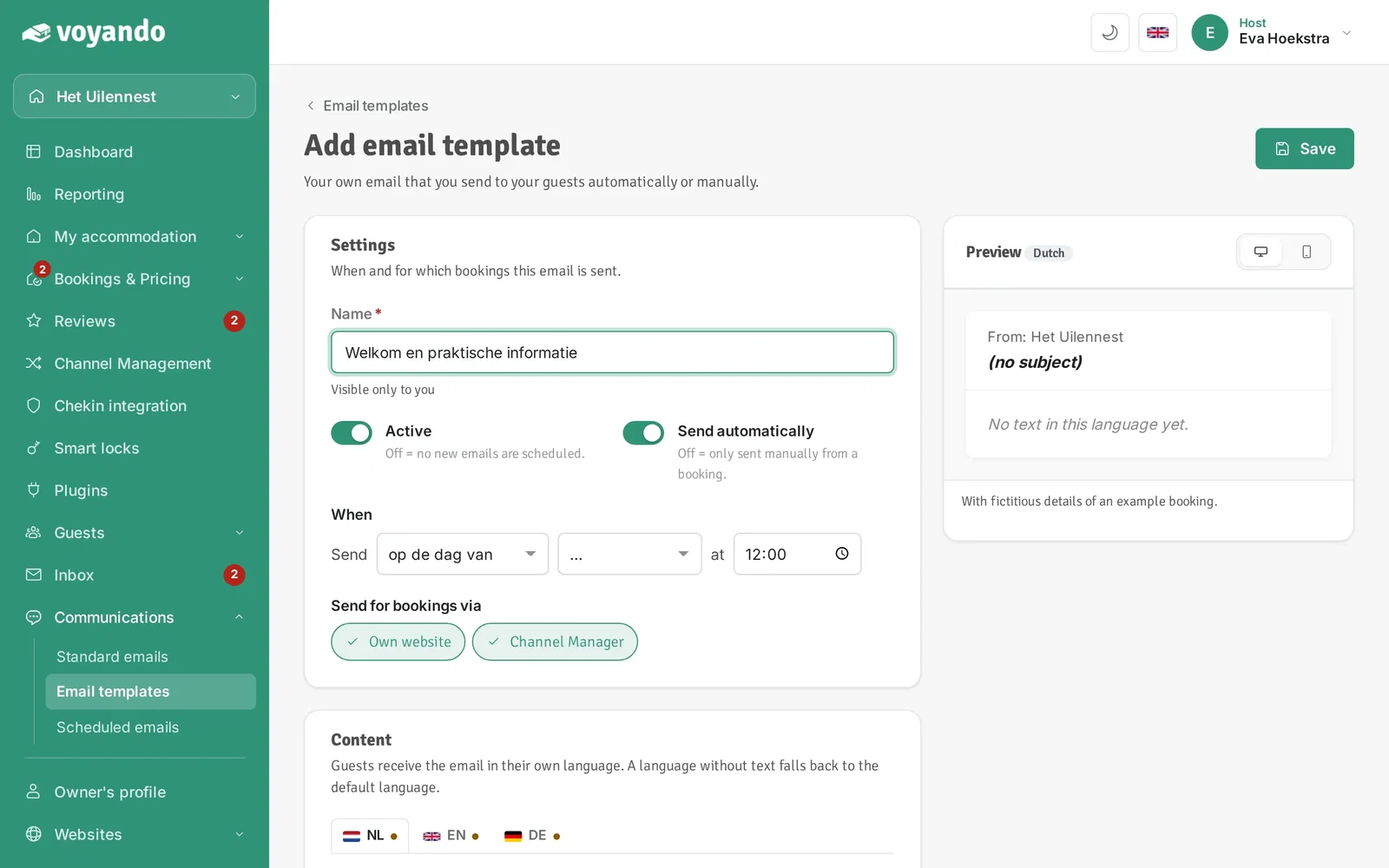
Step 7: Under When, set when the email is sent. It reads as a sentence, for example: Send 1 week before check-in at 12:00.
-
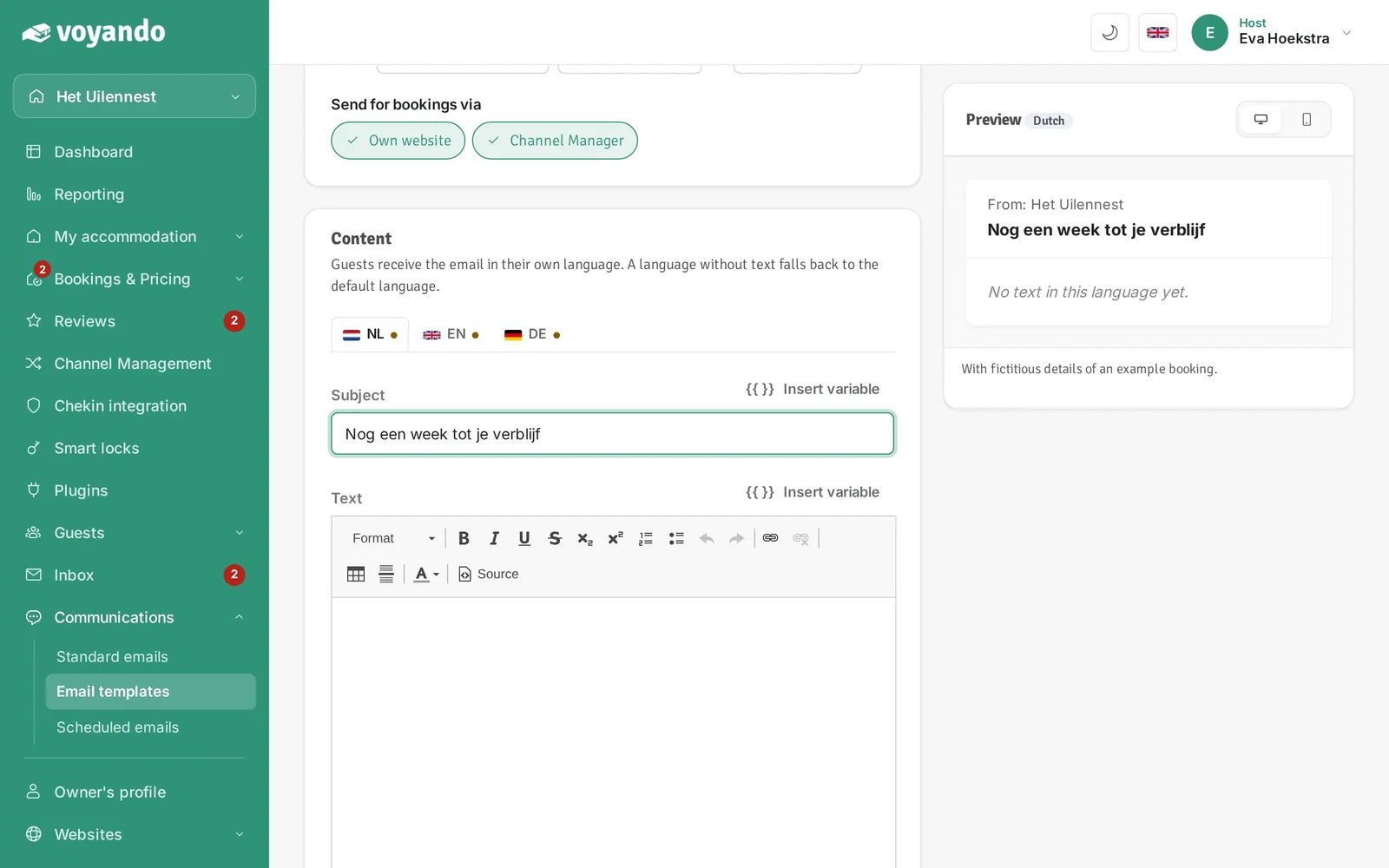
Step 8: Enter the Subject.
-
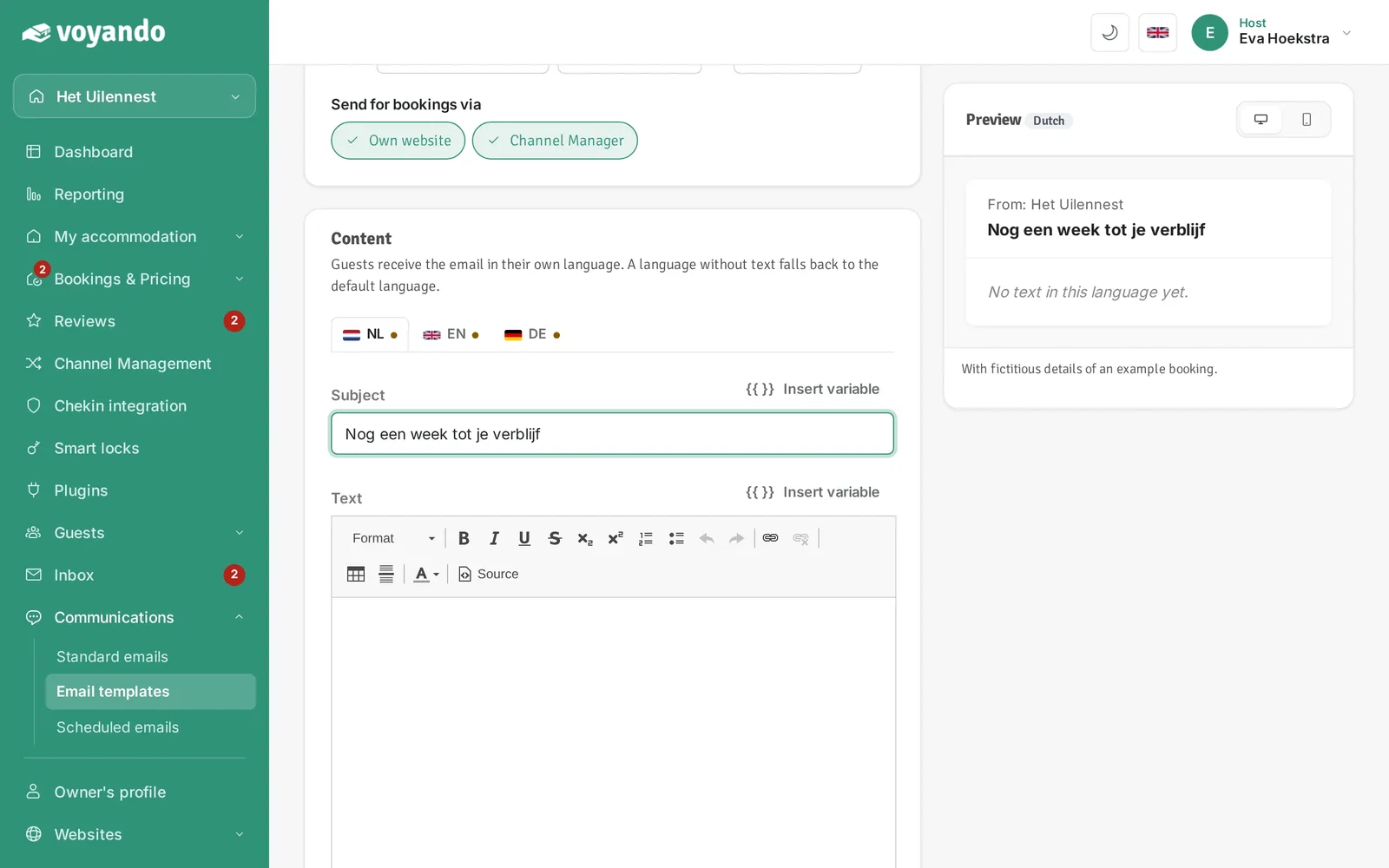
Step 9: Optionally pick a variable via Insert variable next to the subject, such as the guest's name. It is filled in automatically for each booking.
-
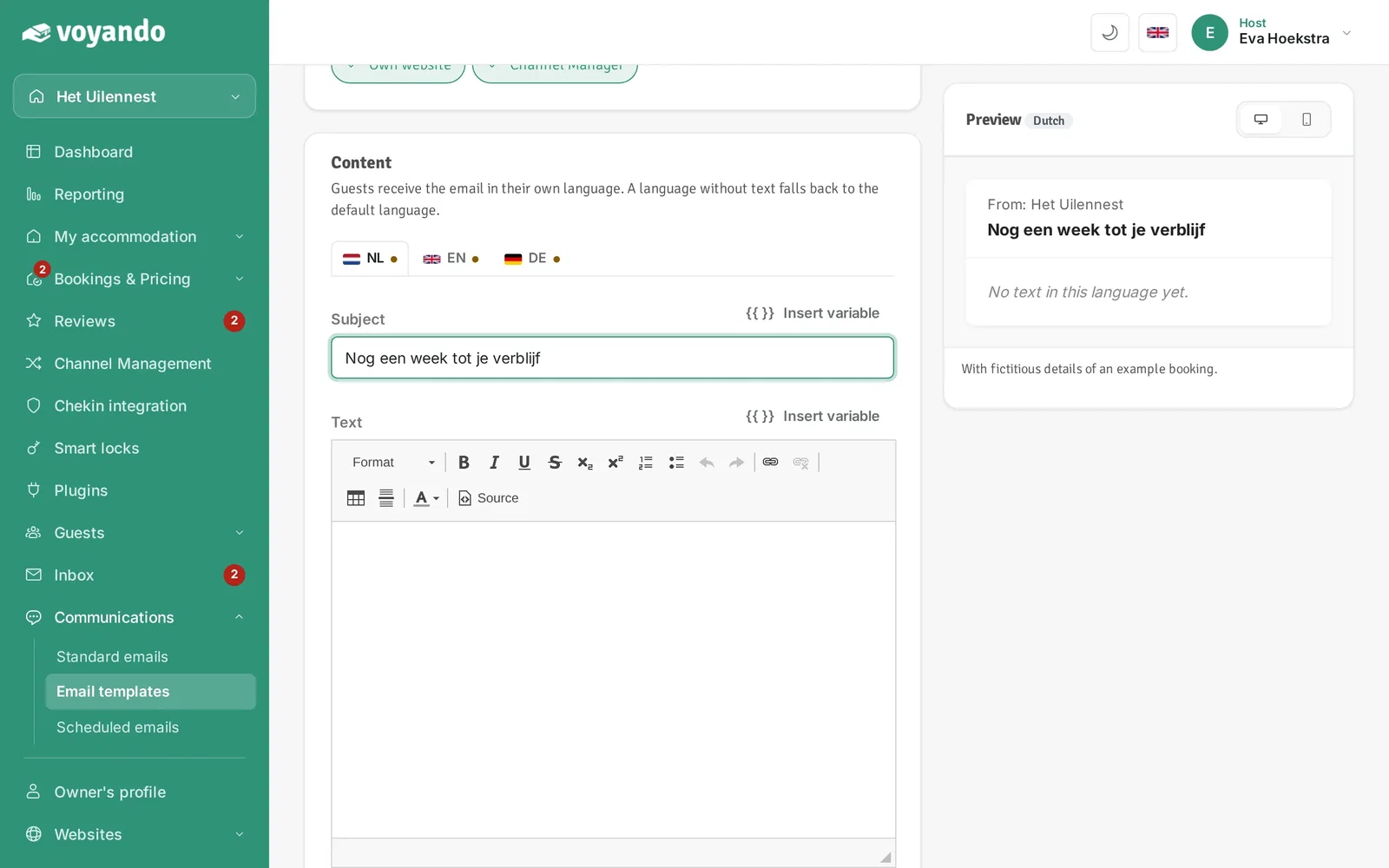
Step 10: Write the text of the email. On the right you immediately see what it looks like.
-
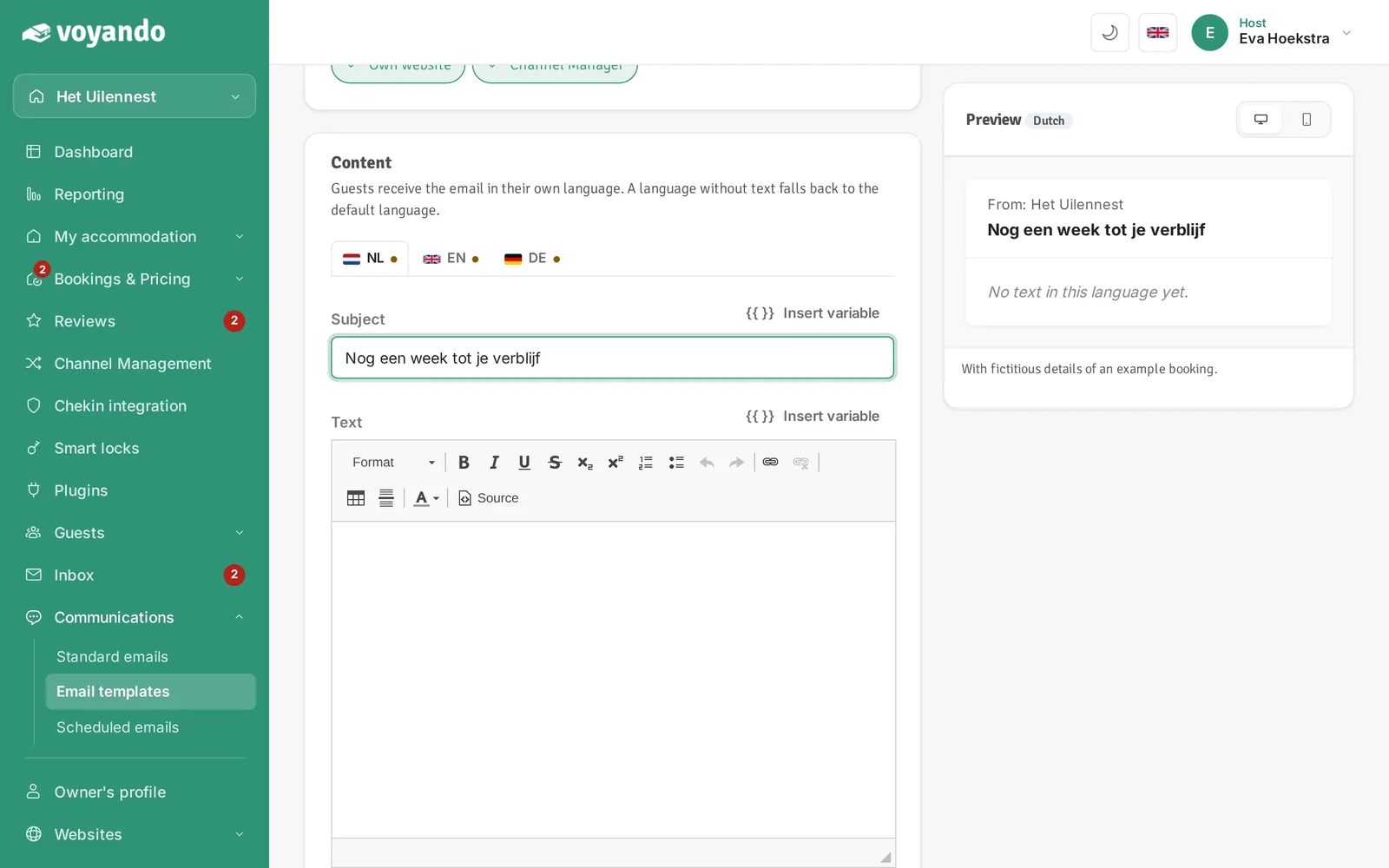
Step 11: Put the cursor where you want it and pick a variable via Insert variable next to the text. That way you never type details like the guest's name or check-in date yourself.
-
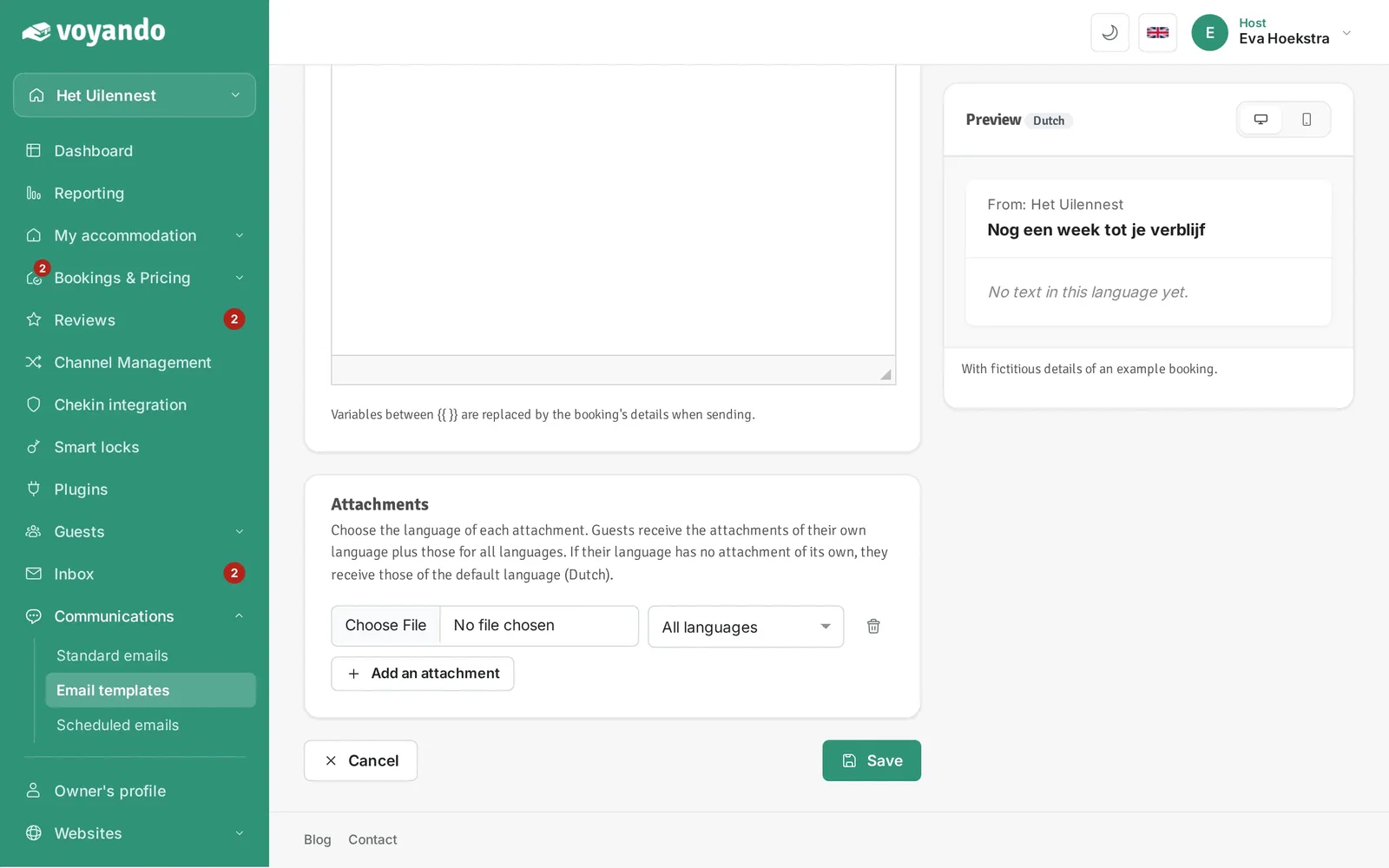
Step 12: Add attachments if you like and choose a language for each. With All languages it goes with every language version.
-
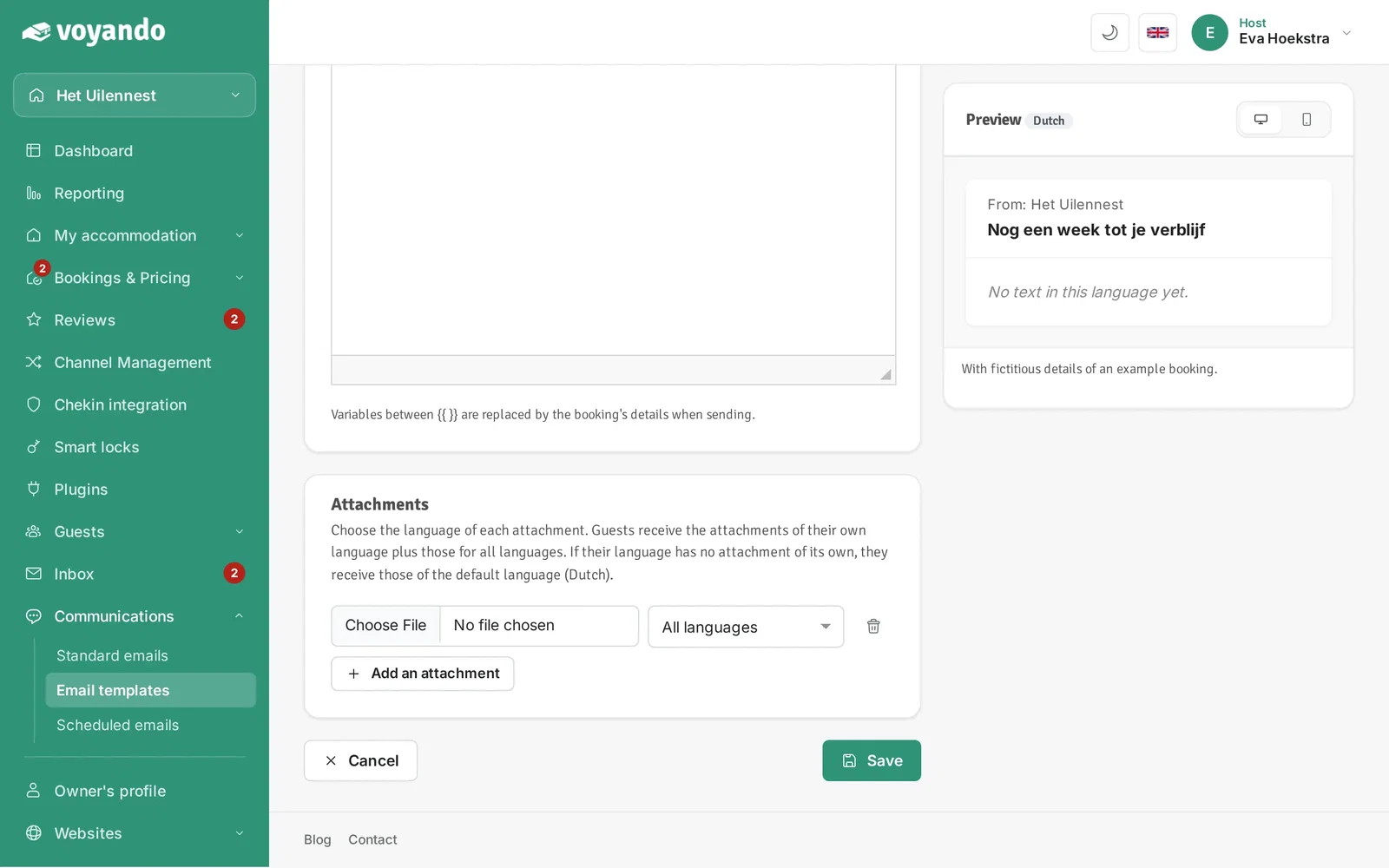
Step 13: On the right you immediately see an example of your email, with fictitious booking details.
-
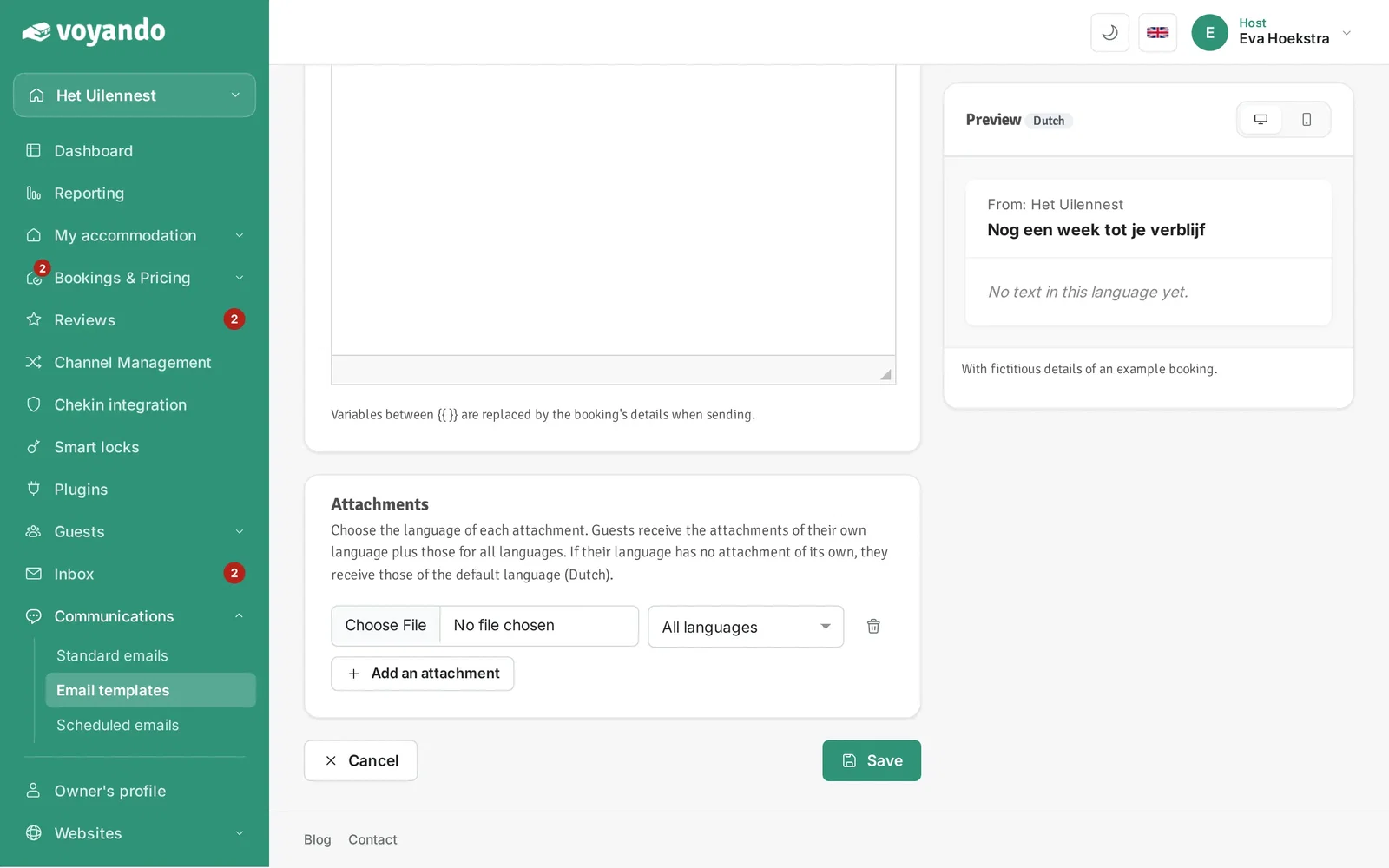
Step 14: Click Save. From now on the email is scheduled automatically for new bookings.
-
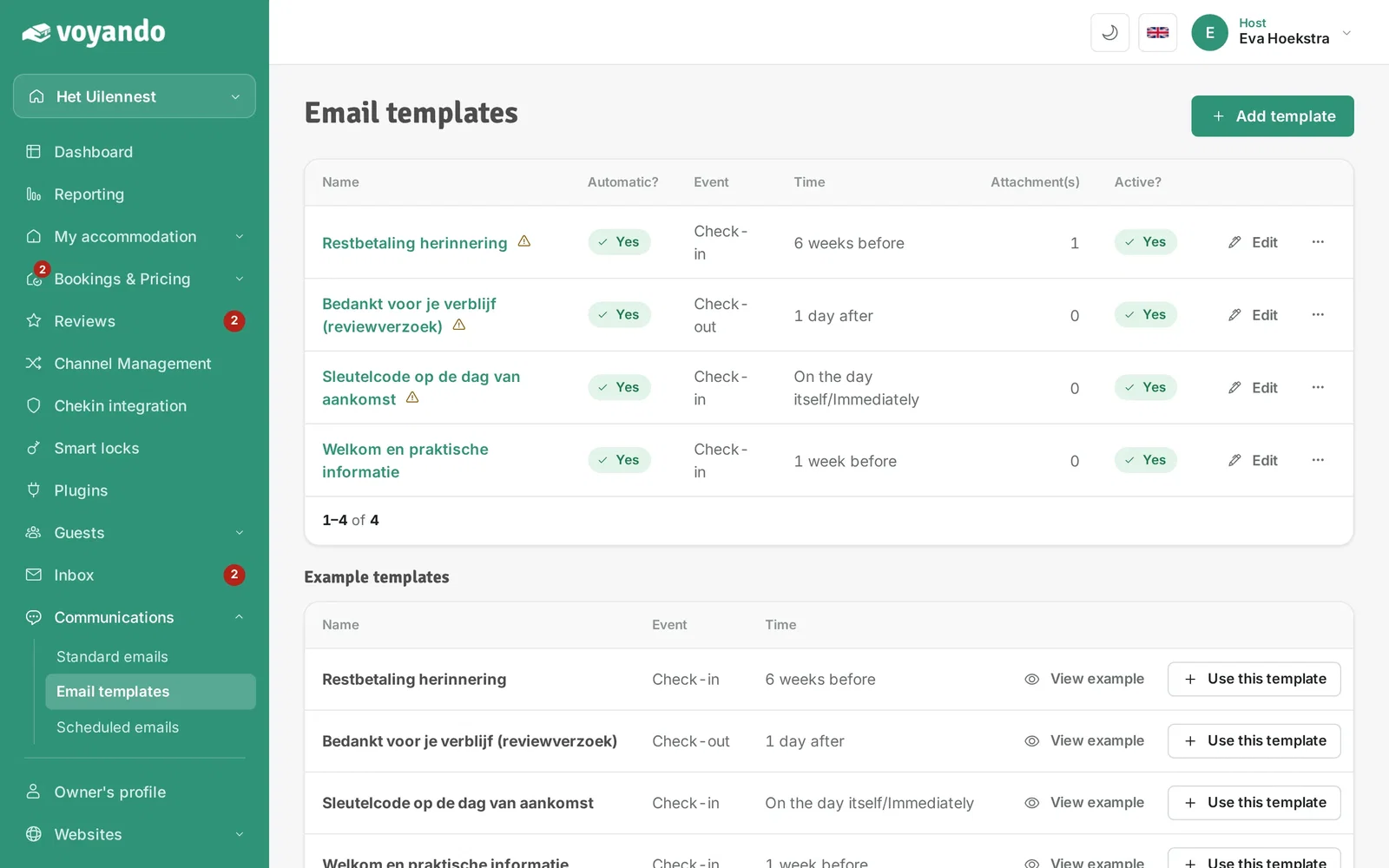
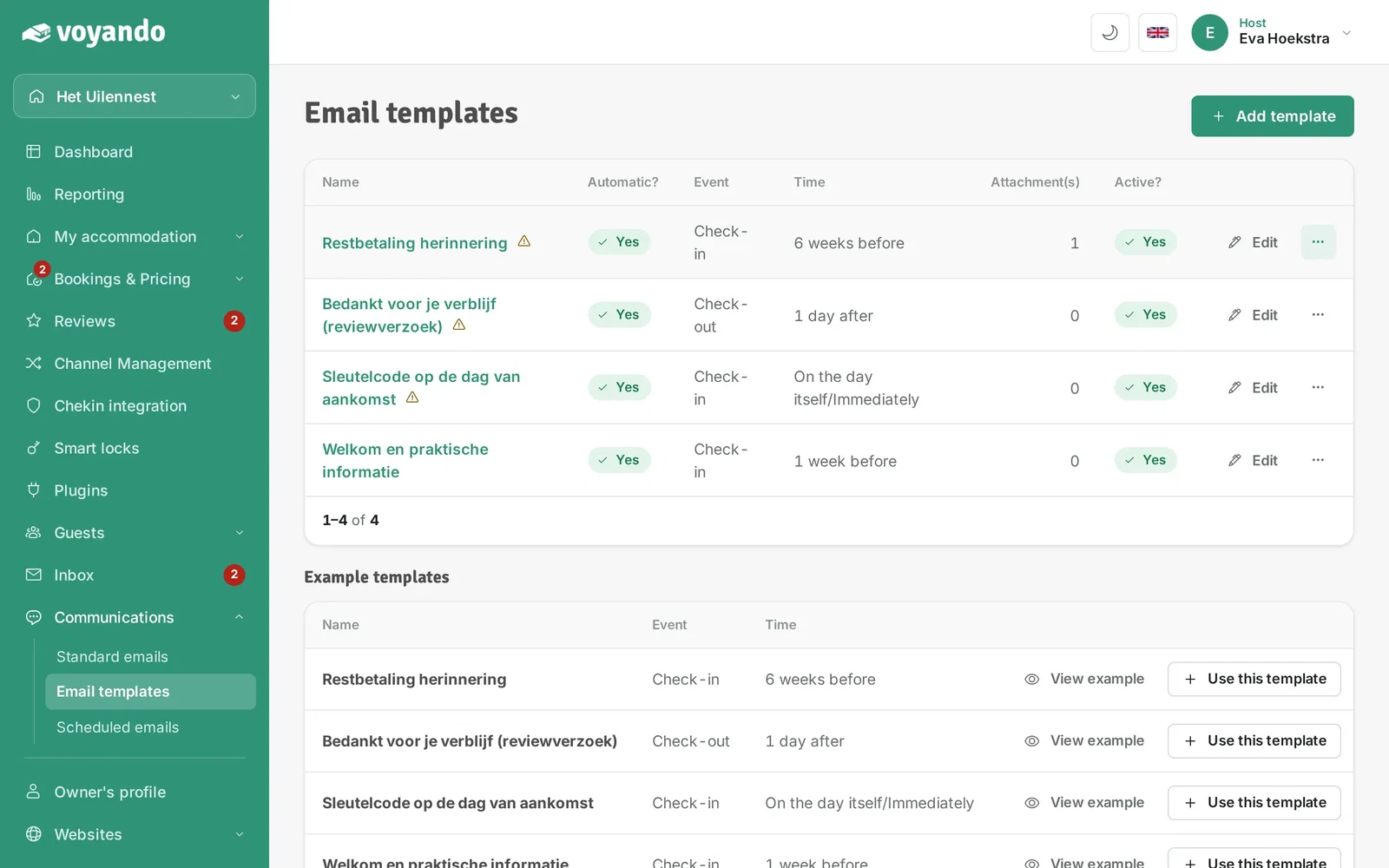
Step 15: Back in the overview of your email templates.
-
Step 16: Do you already have bookings? Click the three dots next to the template.
-
Step 17: Click Reschedule planned e-mails to schedule the email for all existing bookings too.