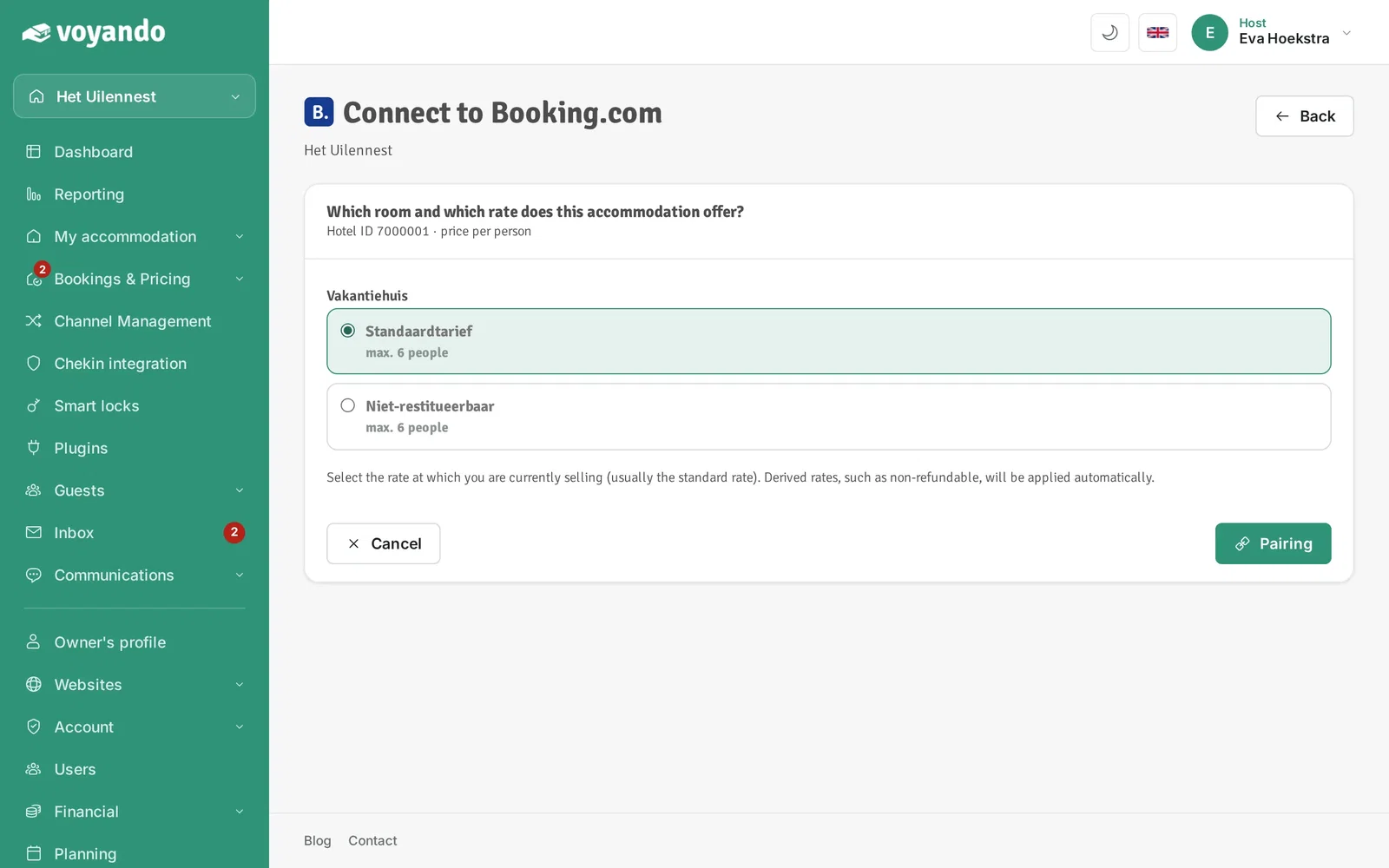
Connect Booking.com to Voyando and you manage your Booking.com reservations from the same dashboard as your own website. Your availability updates automatically, so double bookings are a thing of the past. Read more about the Booking.com integration for your holiday home, or about connecting Airbnb and Booking.com.
Are you the owner of a holiday home and do you use Booking.com for your bookings? In this blog, find out how to effortlessly link Voyando to Booking.com for easy management of your accommodation and maximum revenue. Follow the steps below for a seamless integration!
Preliminary instructions:
- Ensure your full pricing schedule is completed in your Voyando Dashboard.
- Any blackout periods you have entered manually in Booking.com must be copied manually to the Voyando dashboard.
- Ensure that all additional charges, such as cleaning fees, are correctly set up on Booking.com.
Copying the Property Code
Log in to the Booking.com Extranet
Copy your property code, which can be found in the top left-hand corner next to the name of your property. Keep this code to hand for step 4.
Navigate to Connectivity Provider
Go to “Account” and select “Connectivity Provider”.
Click on “Search” and look for our partner Channex.io (spell it out in full).
Click on “Next” and agree to the terms and conditions by clicking on “Yes, I accept”.
Adding Booking.com in Voyando
Log in to your Voyando dashboard.
Click on the relevant property in the top-left corner and go to the Channel Manager section.
Activate the Channel Manager and click on “Activate/Manage Connections”.
Creating a connection
Click “Create” and select Booking.com.
Give the connection a name (Title) and enter the copied property code (step 1) in the Hotel ID field.
Click on “Test Connection”. If the test is successful, click on “Next”.
Mapping Accommodations
Click on ‘not mapped’ and link the relevant accommodation in Voyando to the one on Booking.com.
Optionally, automatically adjust the price to match Booking.com
Click on ‘Actions’ for the relevant link
Click on ‘Edit’
Channel Settings
Click on ‘Add Modifier’
You’ll see two input fields here where you can set the standard price for Booking.com to be automatically increased or decreased.
Activating the Channel Manager
Click on ‘Actions’ next to the relevant connection and then click ‘Activate’.
Then click ‘Actions’ again and select ‘Pull Future Reservations’
If you need help or would like us to check something, please feel free to contact us!
Telephone: 050-7001581
Email: [email protected]
NB: Do you have multiple properties? If so, repeat all the steps for each property. Switch between properties in the top-left corner of your dashboard.
Sending Voyando emails to your Booking.com guests
To ensure that Voyando can send emails to your guests who have booked via Booking.com, you need to authorise our no-reply email address. To do this, follow the steps below:
Go to the Booking.com Extranet login page and enter your login details.
Click on ‘Accommodation’ in the menu and then select ‘Message preferences’.
Click on ‘Security settings’ to access the security options.
Follow the on-screen instructions to complete two-factor authentication. This is an extra layer of security to protect your account.
Click on ‘Add email address’ and enter the following email address: [email protected].
By following these steps, you authorise Voyando to send emails to your Booking.com guests, which helps ensure smooth communication and an improved guest experience.
Step by step
-
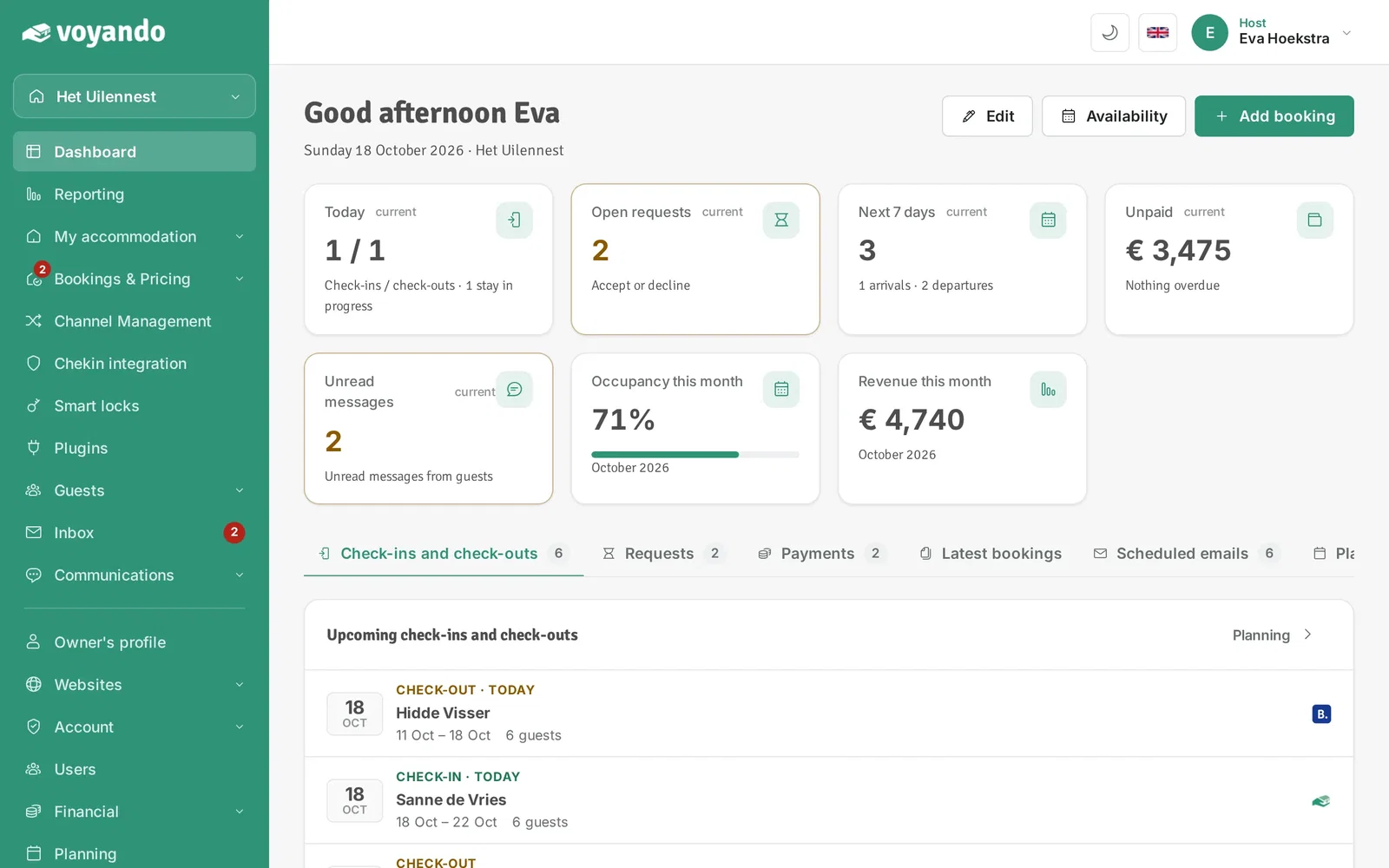
Step 1: Go to your dashboard.
-
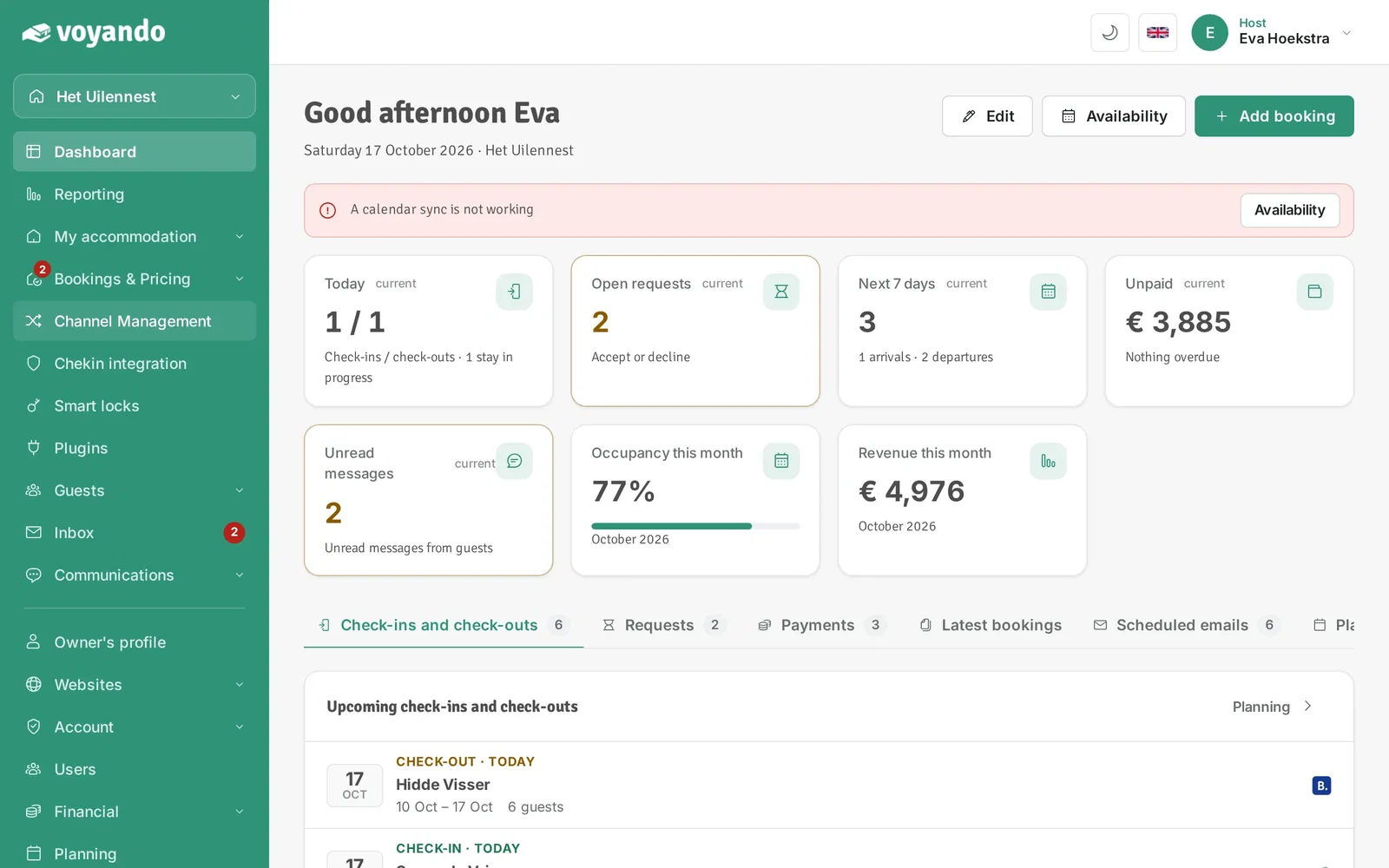
Step 2: Click Channel Management in the menu.
-
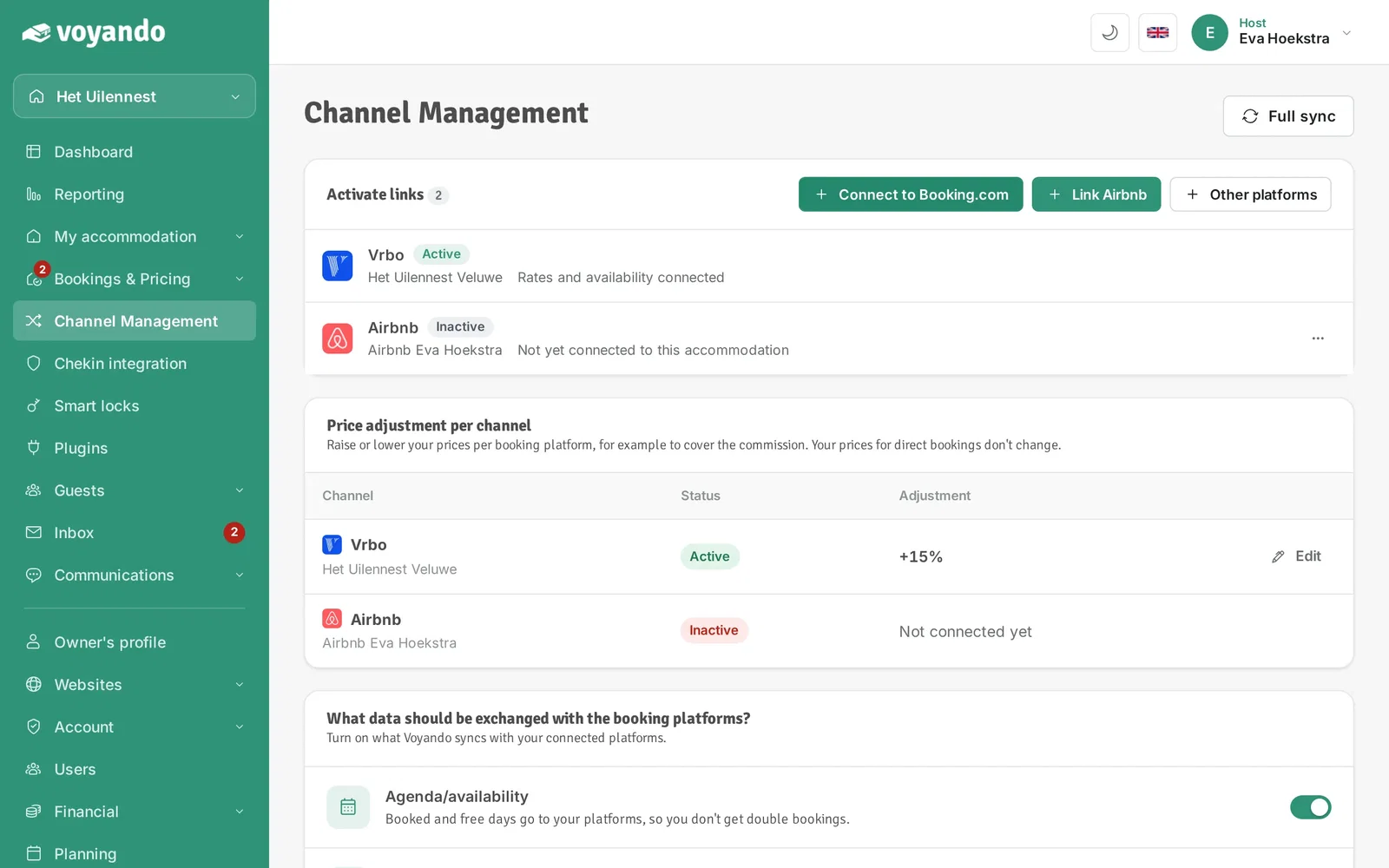
Step 3: Click Connect Booking.com.
-
Step 4: First choose Channex as your connectivity provider in the Booking.com extranet, as described here. Without that step Booking.com refuses the connection.
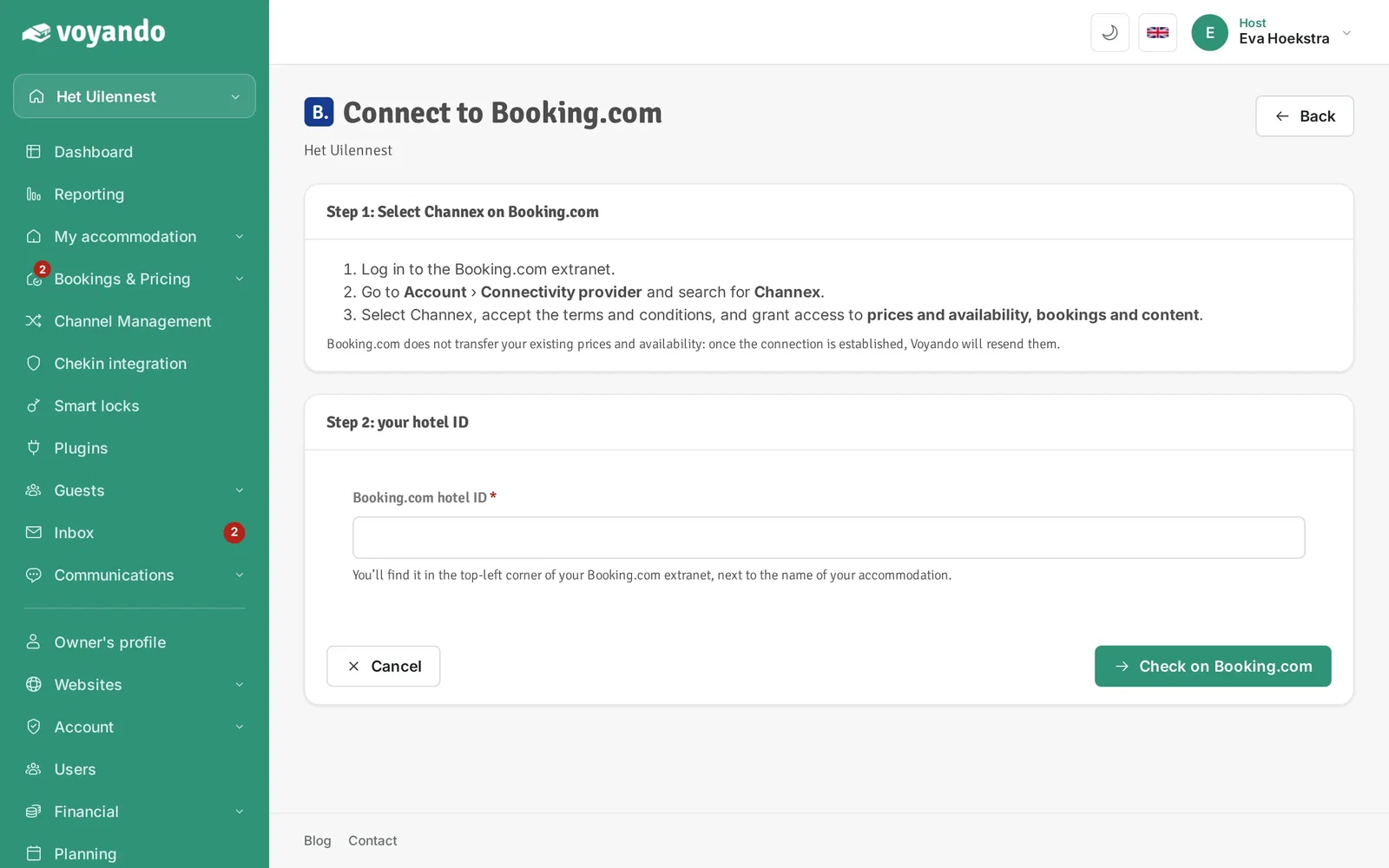
-
Step 5: Enter your Booking.com hotel ID. You find it at the top left of the extranet, next to the name of your property.
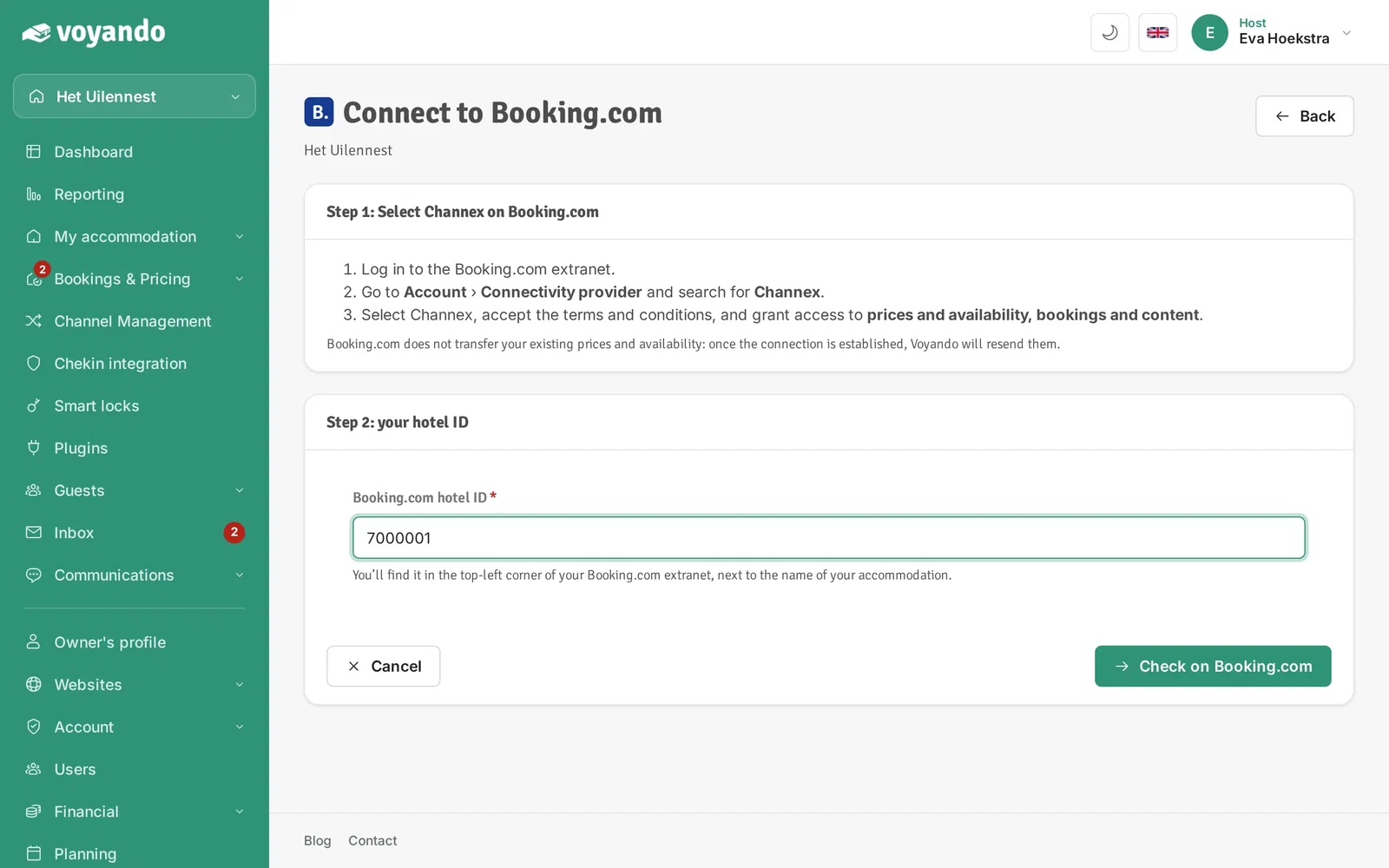
-
Step 6: Click Check with Booking.com. Voyando checks whether Booking.com accepts the connection and fetches your rooms and rates.
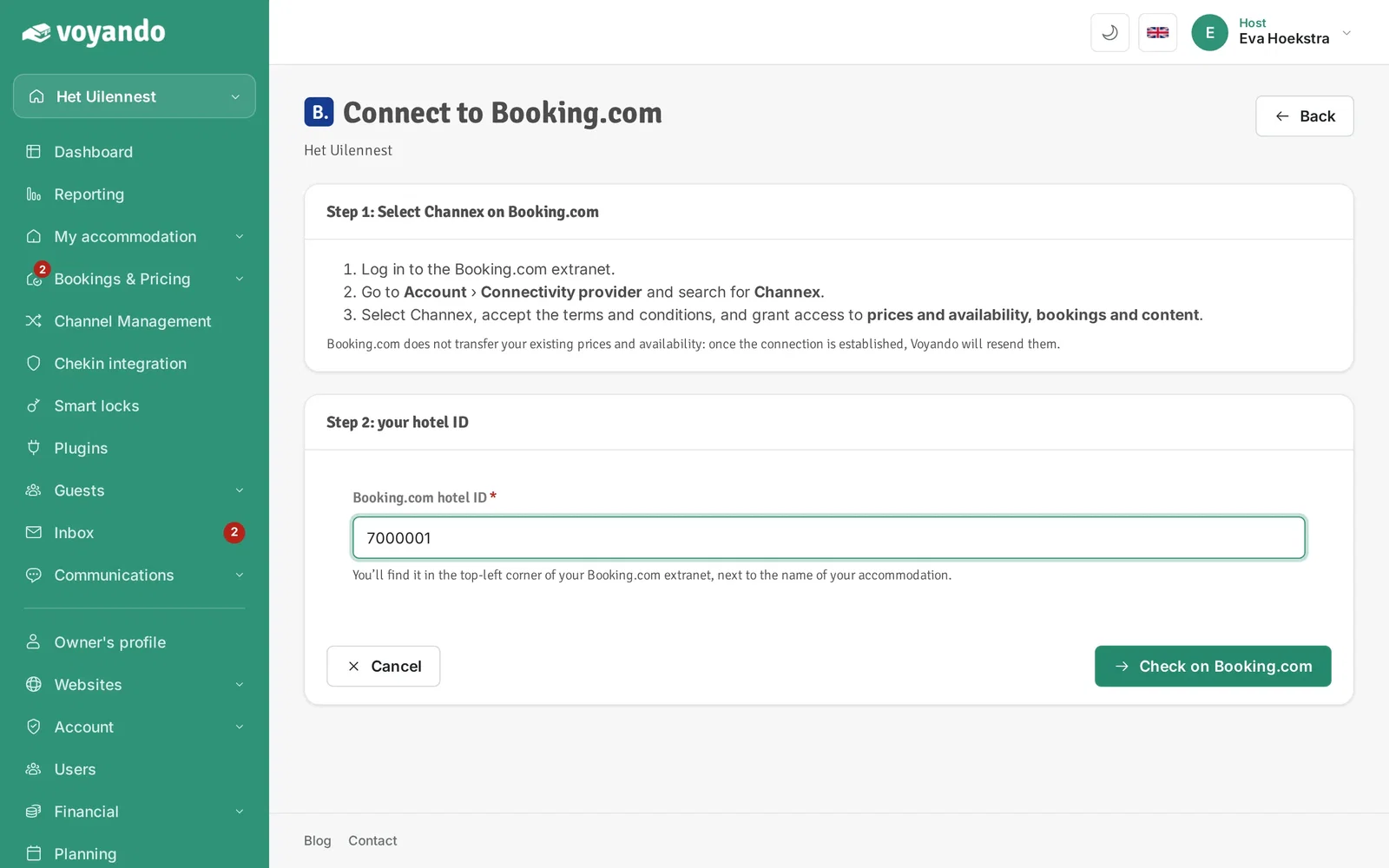
-
Step 7: Choose the room and rate you currently sell on, usually the standard rate. Derived rates, such as non-refundable, follow automatically.
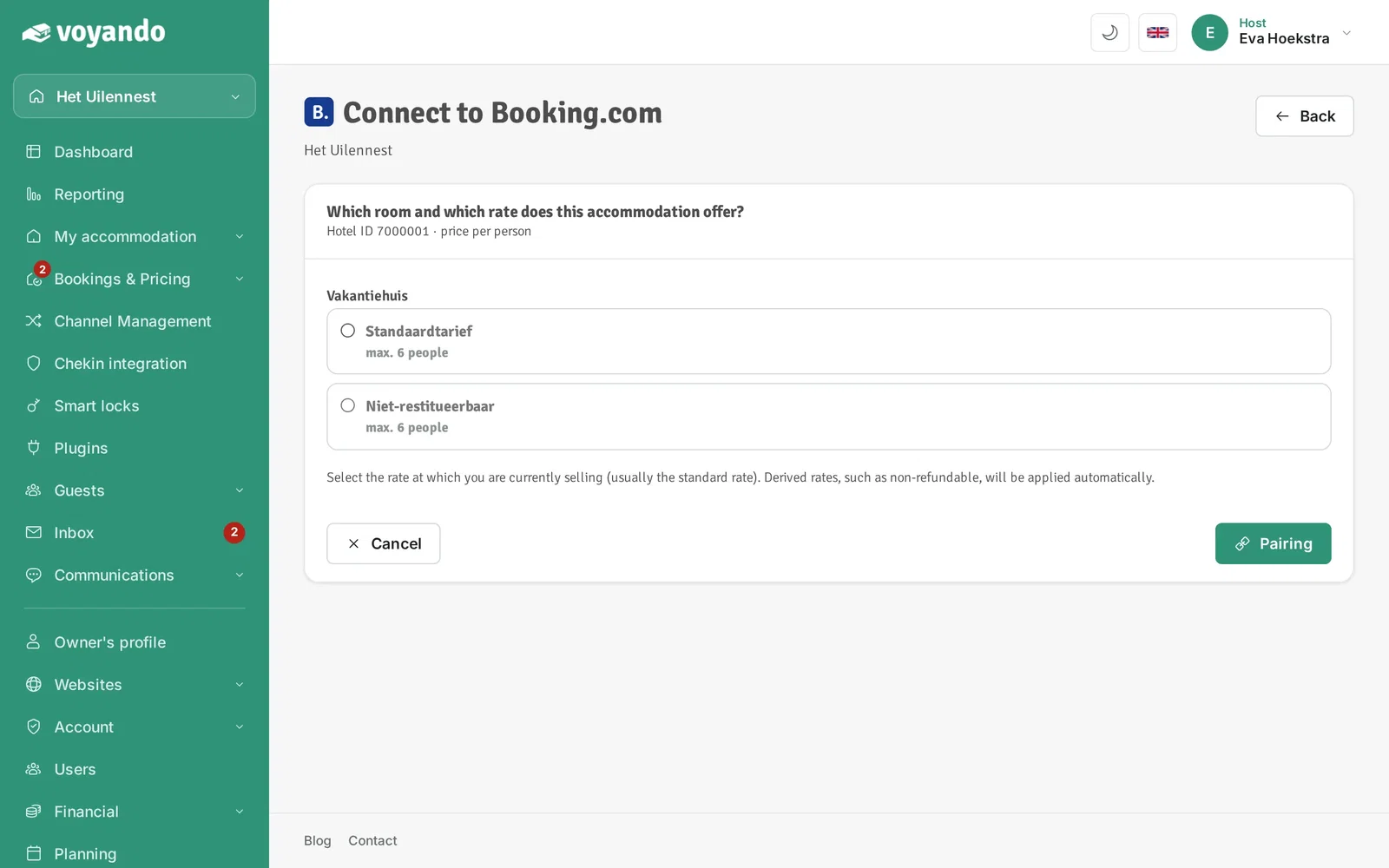
-
Step 8: Click Connect. Voyando immediately sends your prices and availability to Booking.com and fetches your existing bookings.