Skip to content
Channel Manager Everything about Channel Manager Airbnb integration for your holiday homeBooking.com integration for your holiday homeVrbo integration for international holiday rentalsGoogle Travel integration for holiday rentalsConnect Airbnb to Booking.com
Website Everything about Website Sitebuilder for your holiday homeVoyando with your own websiteSecure online payments for guests
Property management Everything about Property management Automatic e-mailsComplete guest registrationUp-to-date prices and calendarSmart locksHuurkalenderReviews
Marketing Everything about Marketing Voyando app
Features Pricing Blog Help Sign in
Try free for 30 days Book an advice call

How do I adjust the nightly rate per platform automatically?

7 steps Updated

In Voyando, use the channel manager to automatically set an increase or decrease in the nightly rate for each platform. You can easily adjust percentages or amounts.

This article is intended for landlords who use a channel manager. In Voyando, you can set your night-time rate to be automatically increased or decreased on a per-platform basis. This is useful if you want to pass on slightly higher costs on one platform, or conversely, offer a discount.

To do this, follow the steps below:

  1. Log in to the Voyando dashboard.

  2. Click on Channel Manager in the menu.

  3. Click on ‘Activate/Manage Connections’.

  4. Find the relevant connection and click on Actions next to it.

  5. Then click on Edit.

  6. Click on ‘Channel settings’.

  7. Click on ‘Add Modifier’.

  8. Two boxes will now appear. In the first box, select what you want to do. You have the following options:

    • Increase by percent

    • Decrease by percentage

    • Increase by amount

    • Decrease by amount

  9. In the second box, enter the value. Do this without any symbols (i.e. just the number, without % or €).

  10. Click Save to save your settings.


Step by step

  1. Step 1: Go to your dashboard.

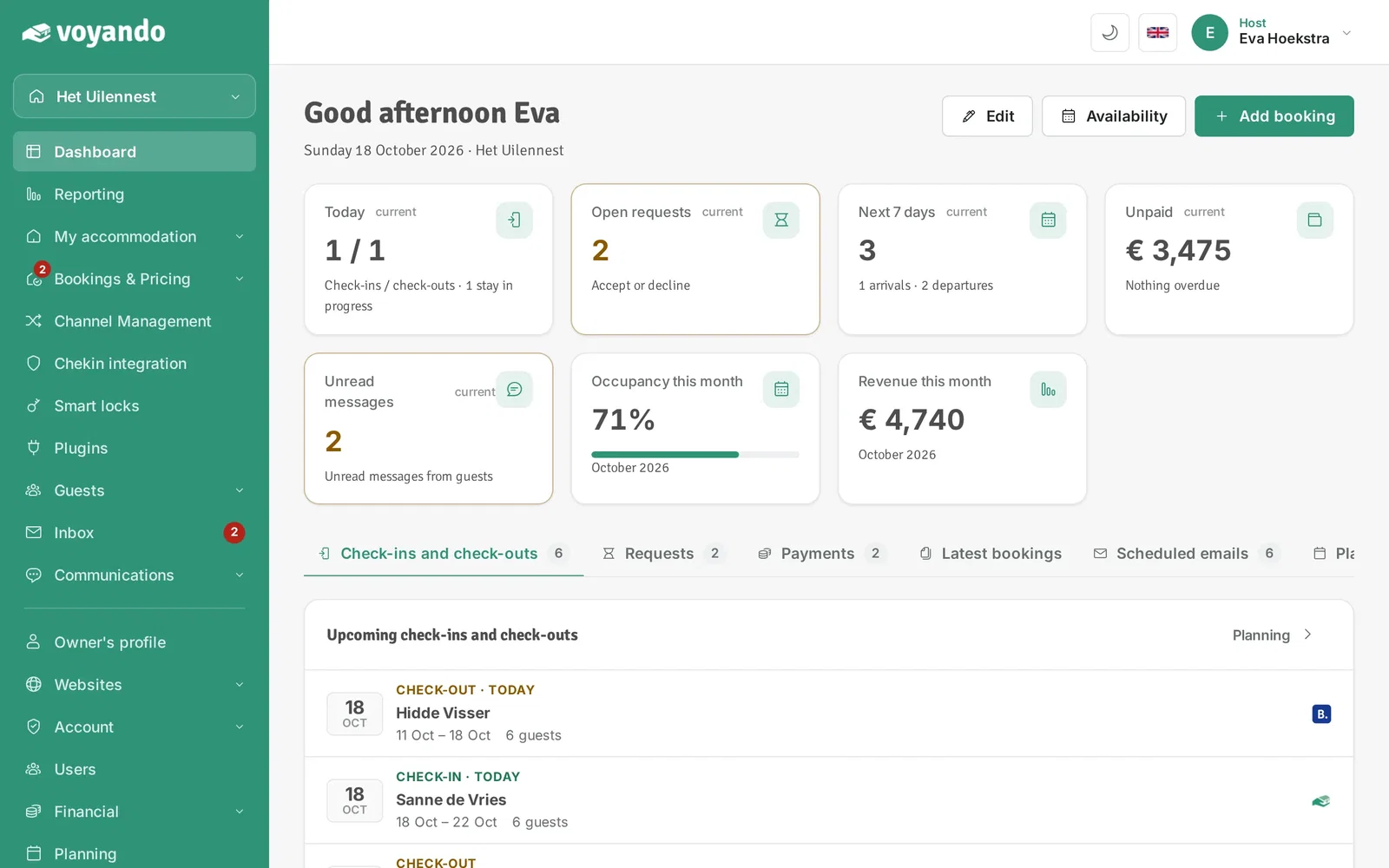
    How do I adjust the nightly rate per platform automatically? – step 1: Go to your dashboard.
  2. Step 2: Click Channel Management in the menu.
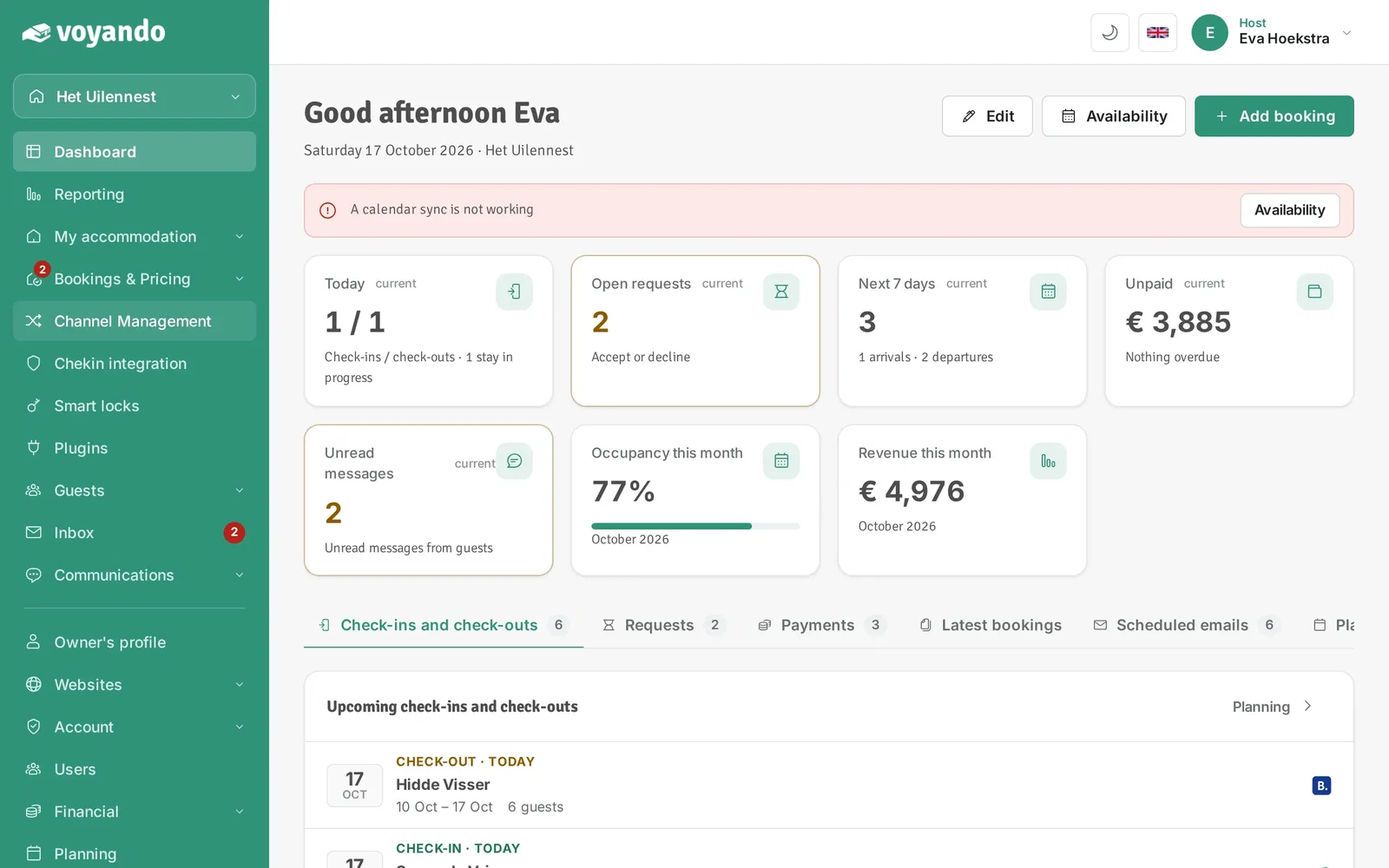
    How do I adjust the nightly rate per platform automatically? – step 2: Click Channel Management in the menu.
  3. Step 3: Under Price adjustment per channel you see, per booking platform, how much your prices are raised or lowered. Your prices for direct bookings stay the same.
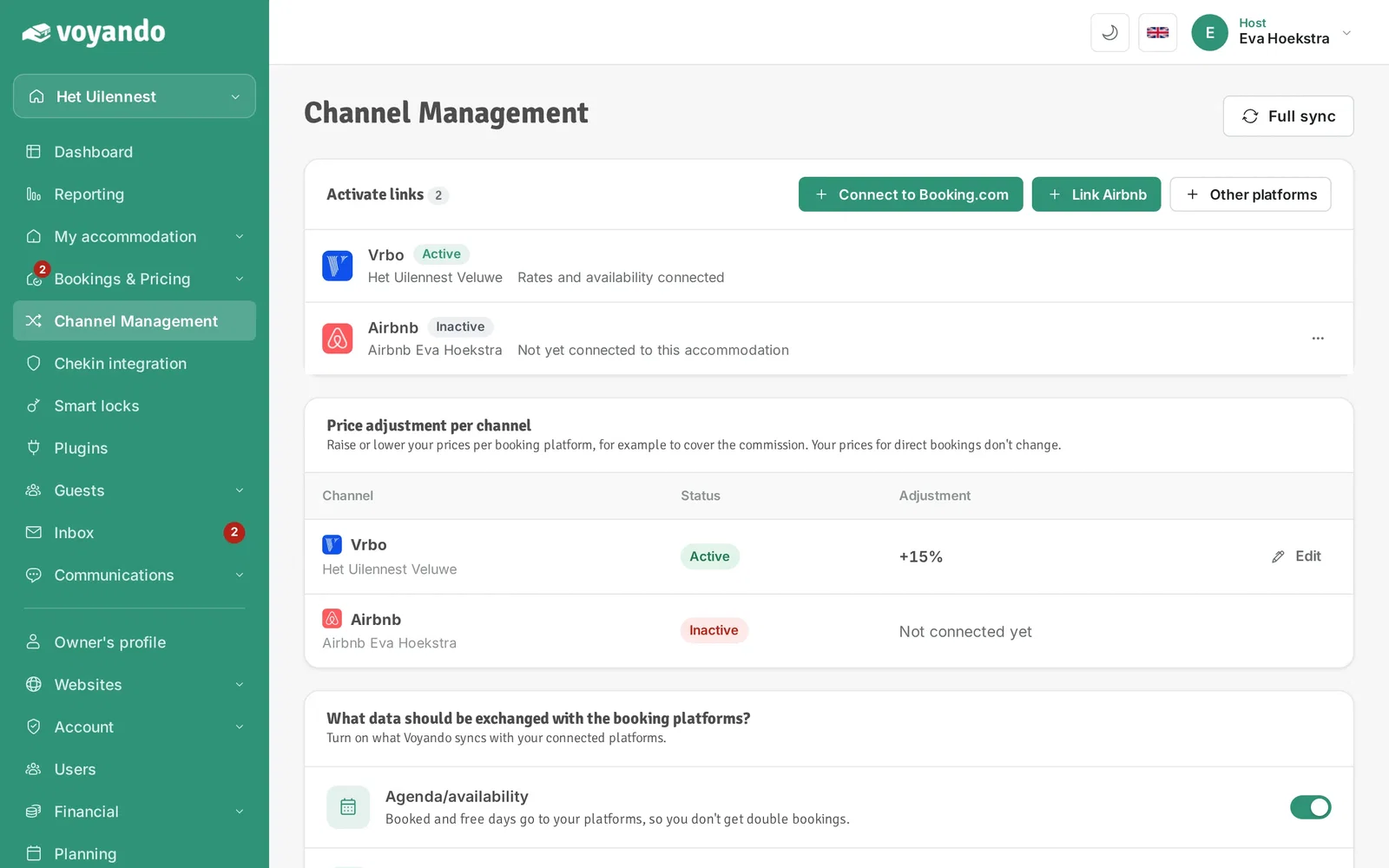
    How do I adjust the nightly rate per platform automatically? – step 3: Under Price adjustment per channel you see, per booking platform, how much your prices are raised or lowered. Your prices for direct bookings stay the same.
  4. Step 4: Click Change next to the platform.
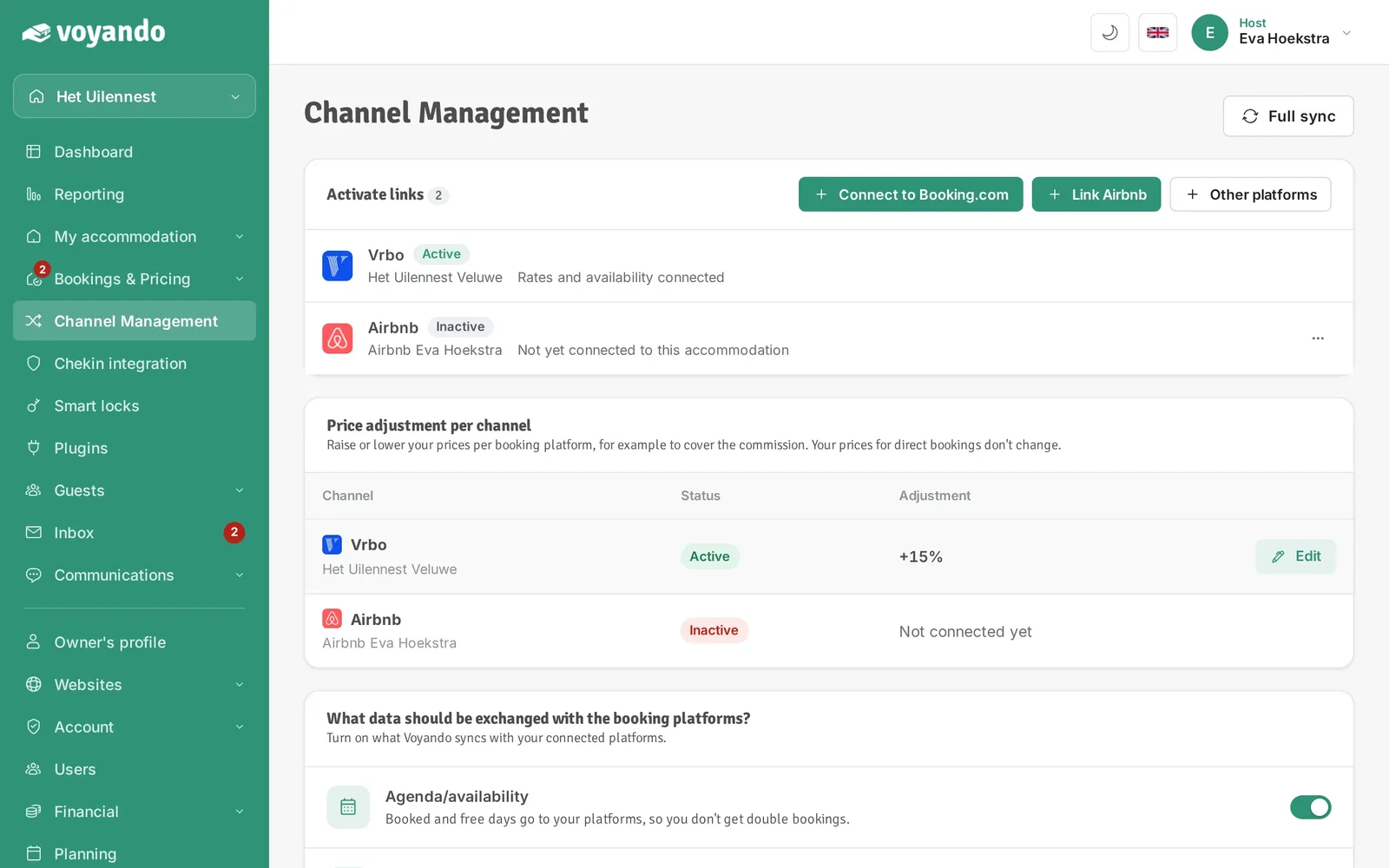
    How do I adjust the nightly rate per platform automatically? – step 4: Click Change next to the platform.
  5. Step 5: Under Price rule, choose whether to raise or lower, by a percentage or a fixed amount.
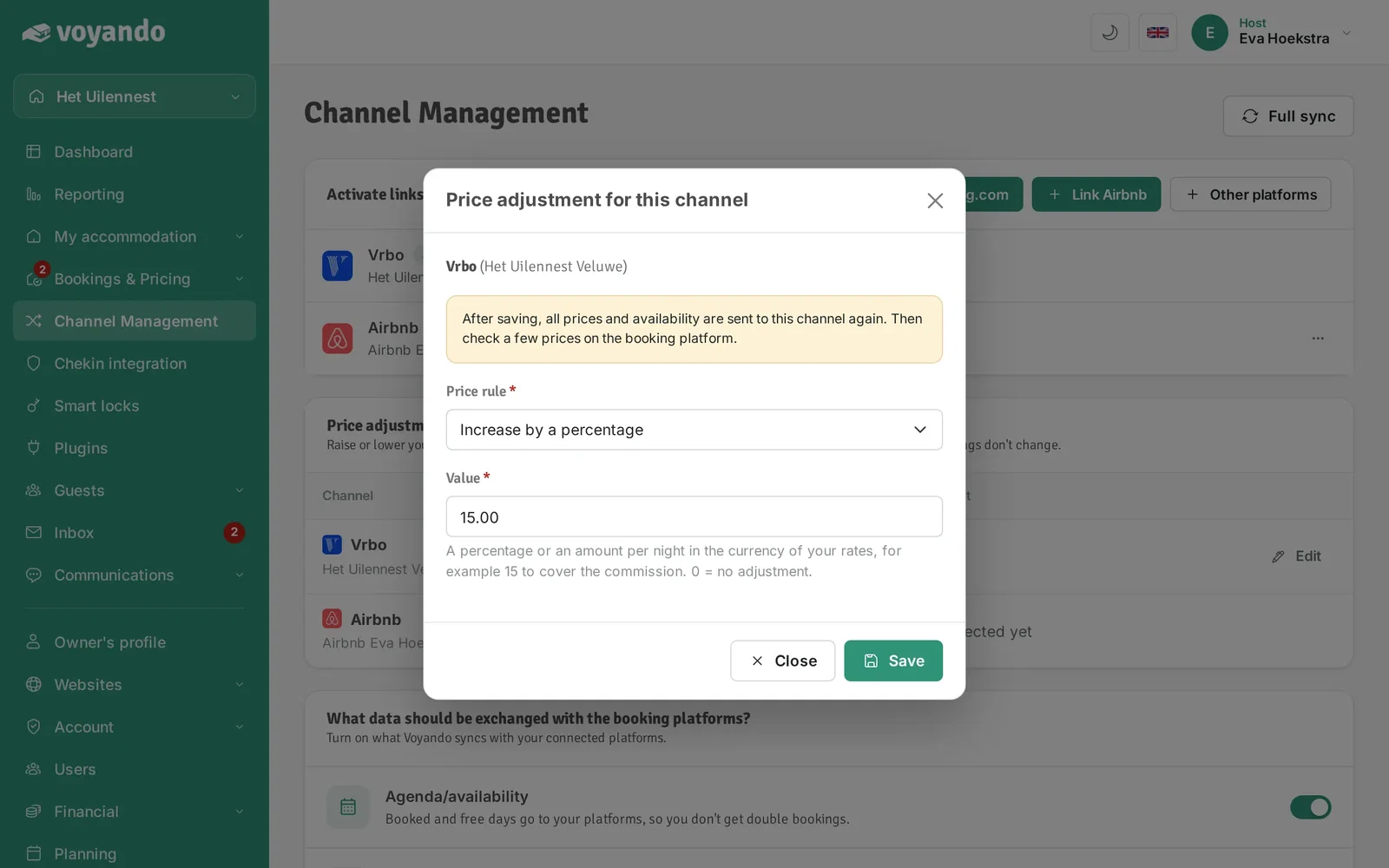
    How do I adjust the nightly rate per platform automatically? – step 5: Under Price rule, choose whether to raise or lower, by a percentage or a fixed amount.
  6. Step 6: Enter the percentage or amount per night under Value, for example 10 to cover the commission. 0 means no adjustment.
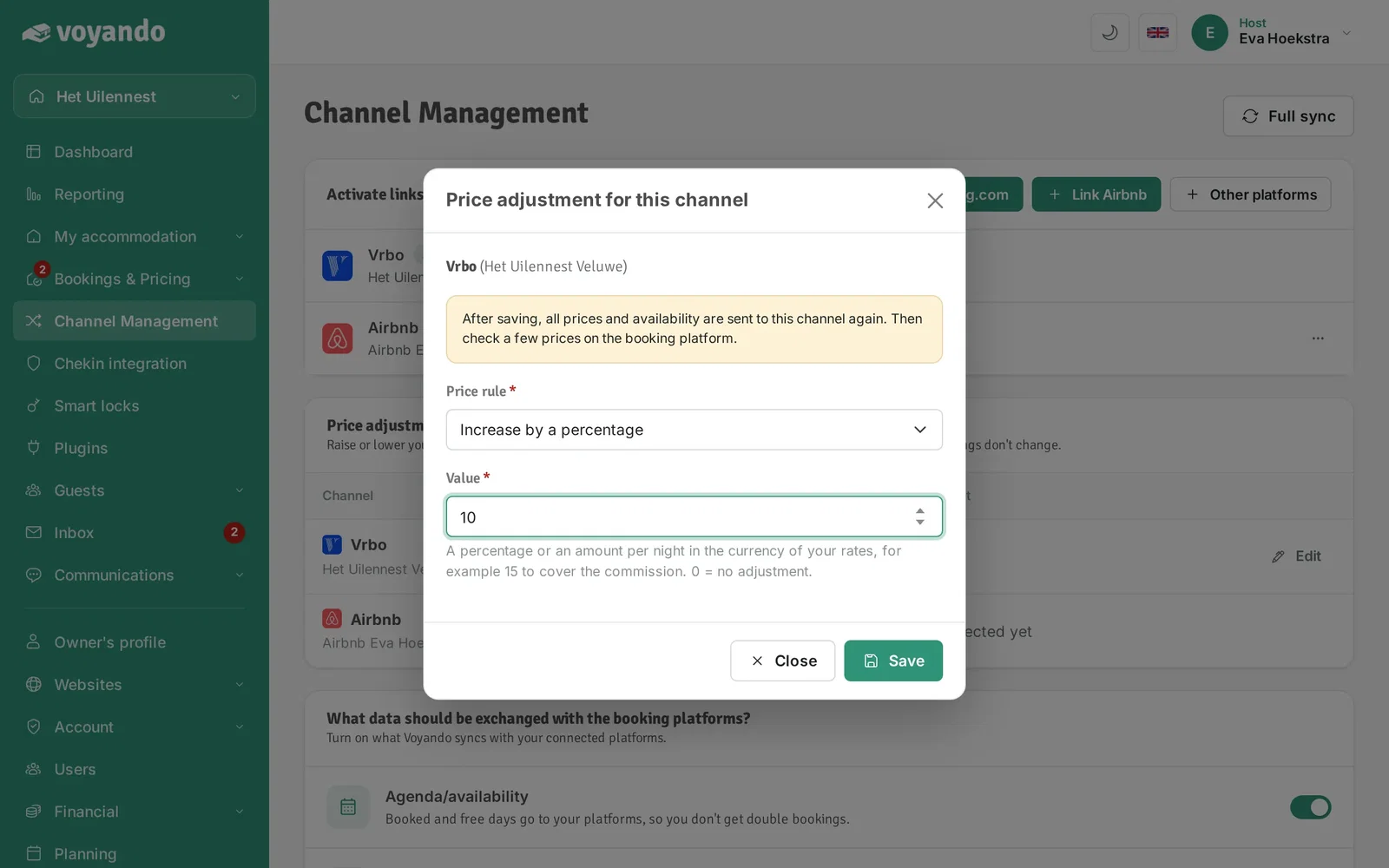
    How do I adjust the nightly rate per platform automatically? – step 6: Enter the percentage or amount per night under Value, for example 10 to cover the commission. 0 means no adjustment.
  7. Step 7: Click Save. Voyando then sends all prices and availability to this platform again; check a few prices on the platform afterwards.
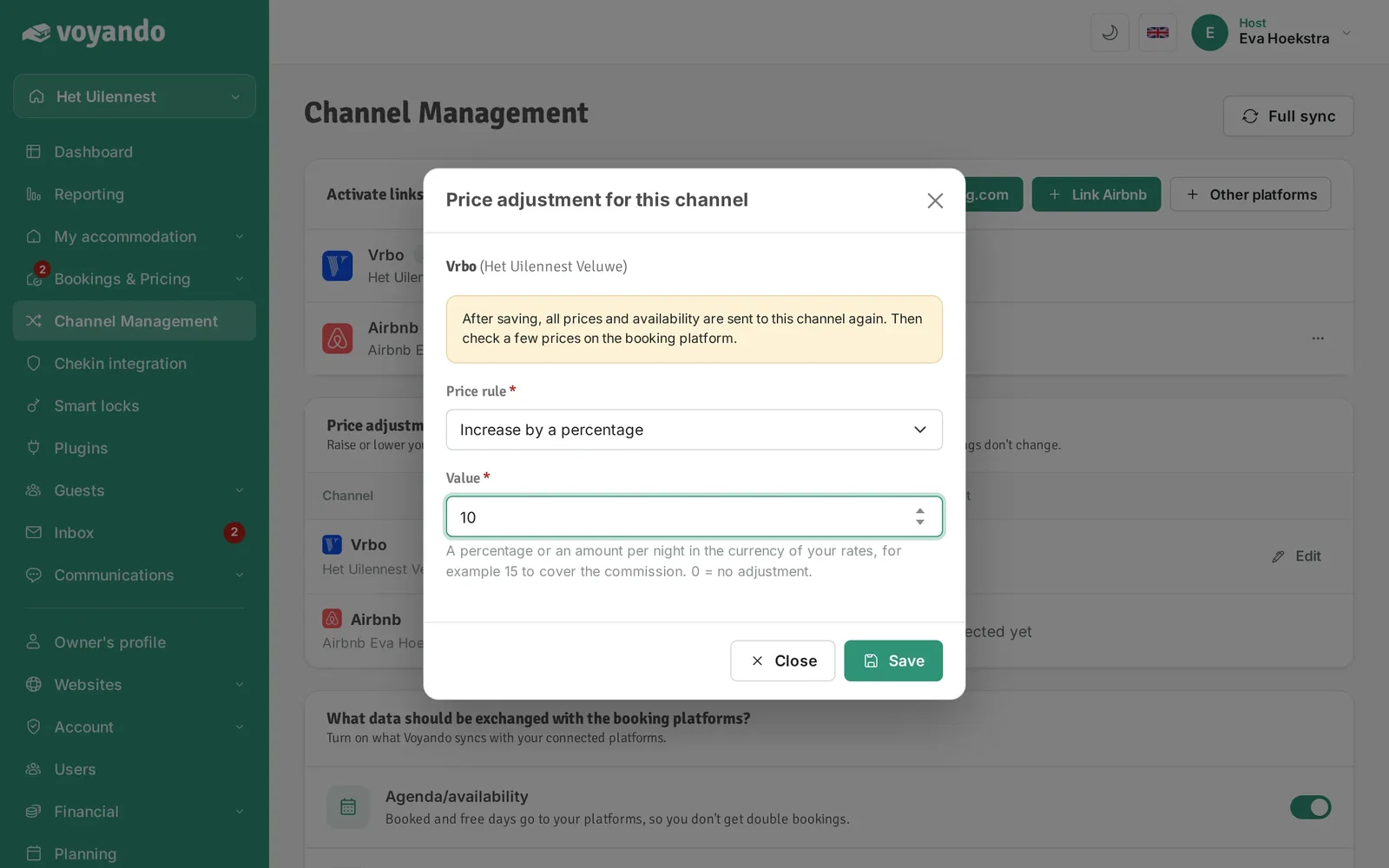
    How do I adjust the nightly rate per platform automatically? – step 7: Click Save. Voyando then sends all prices and availability to this platform again; check a few prices on the platform afterwards.
Try for free Demo
Free webinar

Earn up to 15% more with your accommodation

Watch our free webinar with practical tips for more direct bookings and a better price. Leave your email address and you can watch straight away.

Or try Voyando right away 30 days free.