Skip to content
Channel Manager Everything about Channel Manager Airbnb integration for your holiday homeBooking.com integration for your holiday homeVrbo integration for international holiday rentalsGoogle Travel integration for holiday rentalsConnect Airbnb to Booking.com
Website Everything about Website Sitebuilder for your holiday homeVoyando with your own websiteSecure online payments for guests
Property management Everything about Property management Automatic e-mailsComplete guest registrationUp-to-date prices and calendarSmart locksHuurkalenderReviews
Marketing Everything about Marketing Voyando app
Features Pricing Blog Help Sign in
Try free for 30 days Book an advice call

How can I change the check-in and check-out dates?

9 steps Updated

You can easily adjust the check-in and check-out dates for your standard rate or specific periods via the dashboard under ‘Bookings & Prices’.

s

Step by step

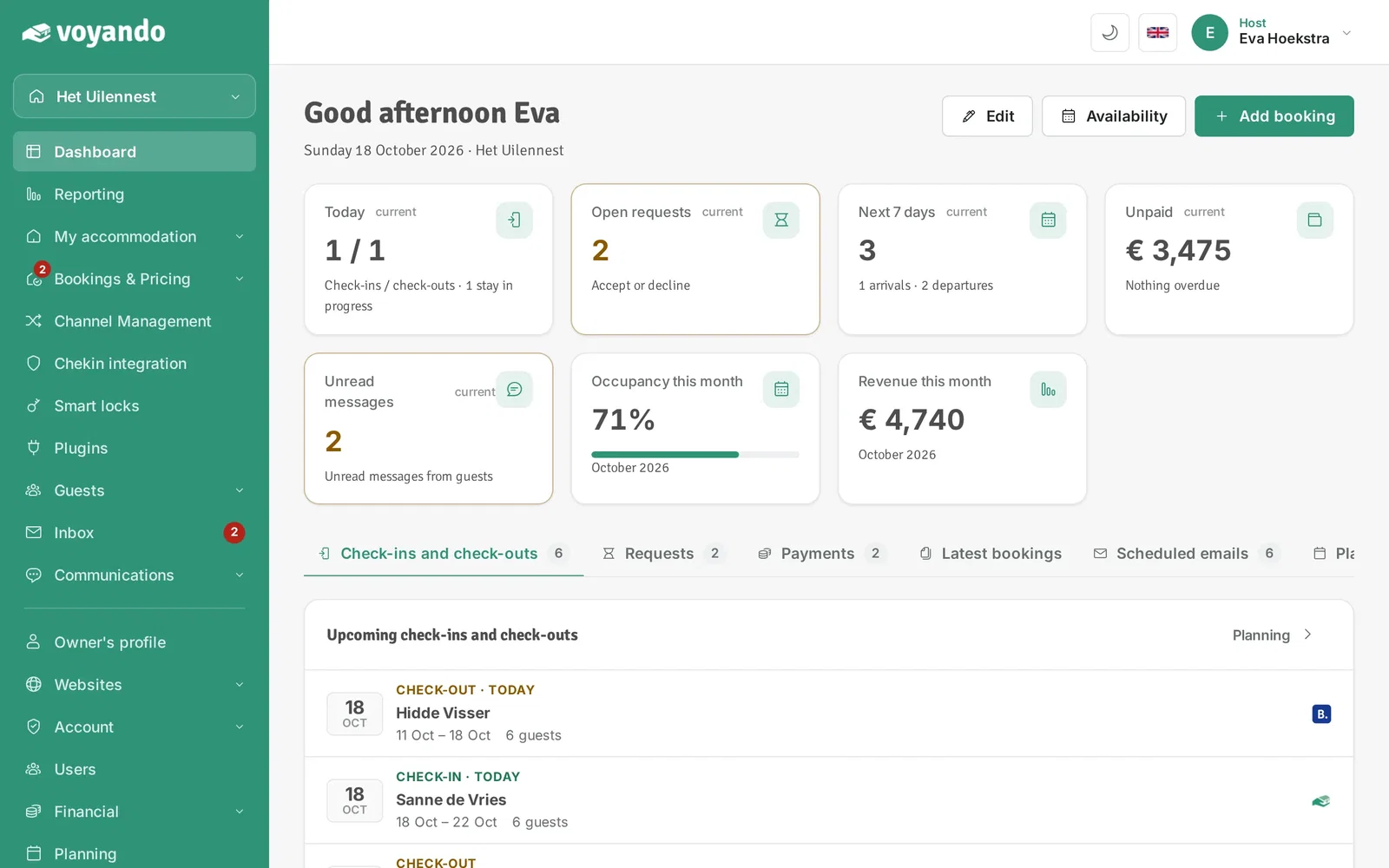
  1. Step 1: Go to your dashboard.

    How can I change the check-in and check-out dates? – step 1: Go to your dashboard.
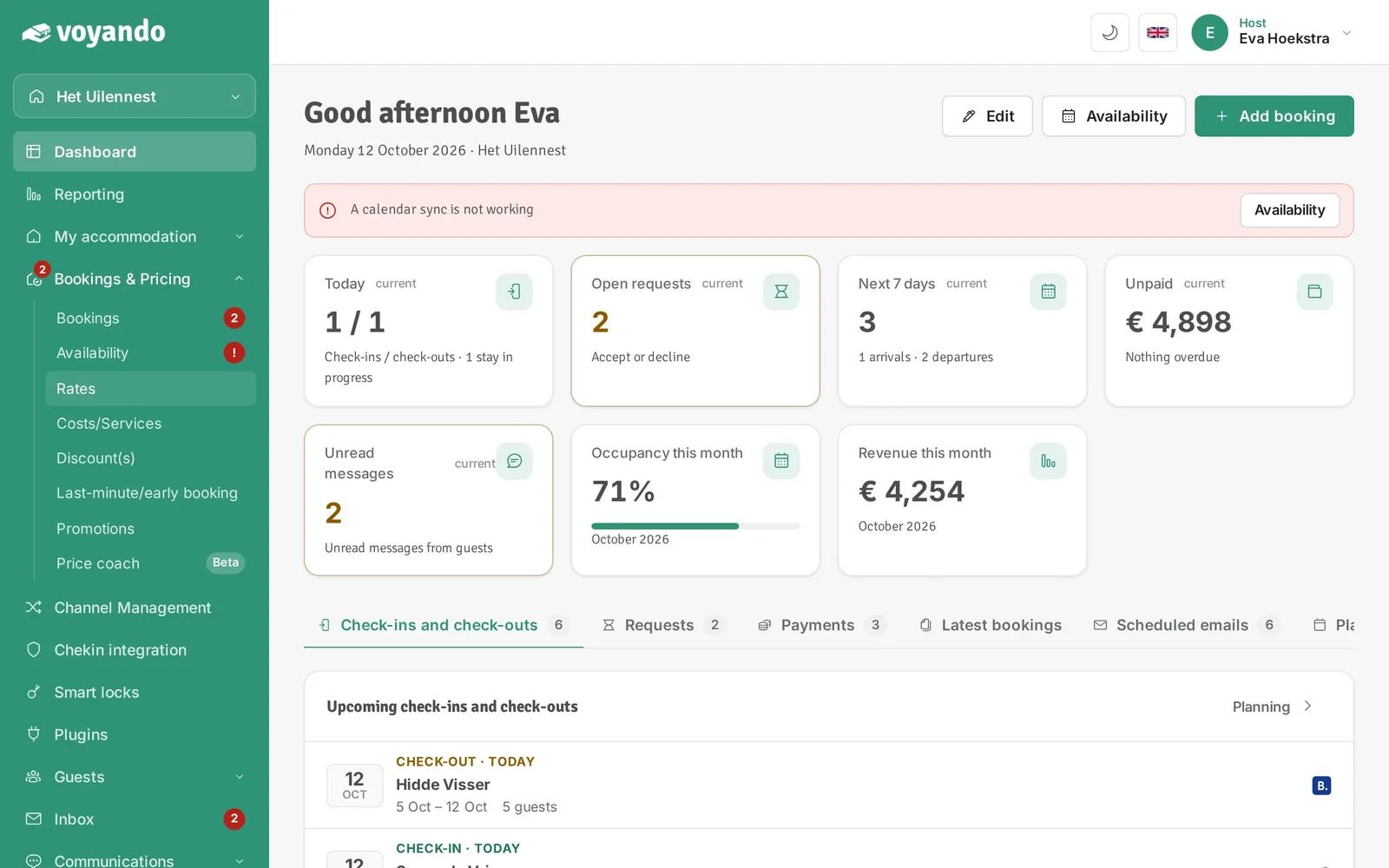
  2. Step 2: Click Bookings & Pricing in the menu.
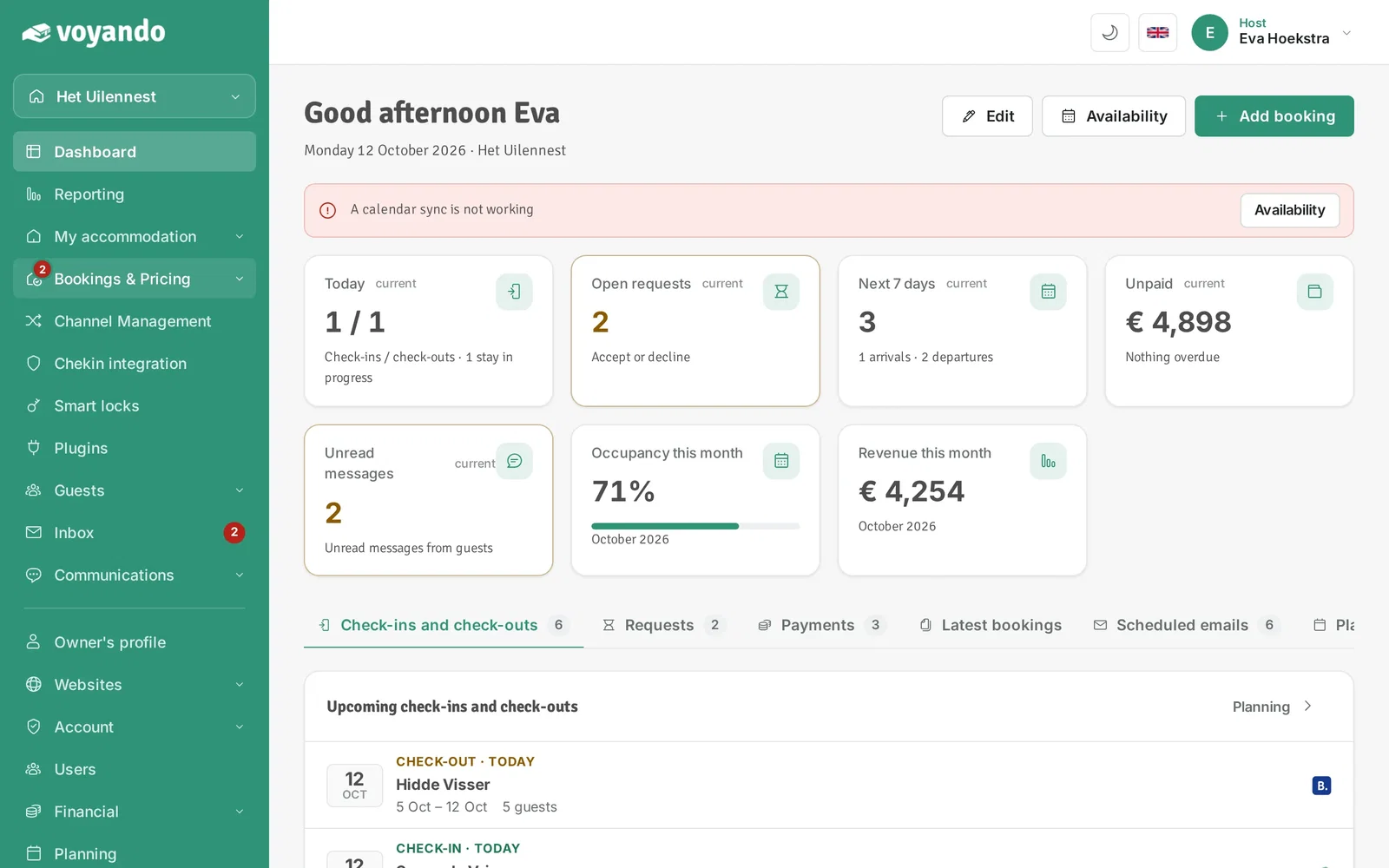
    How can I change the check-in and check-out dates? – step 2: Click Bookings & Pricing in the menu.
  3. Step 3: Click Rates.

    How can I change the check-in and check-out dates? – step 3: Click Rates.
  4. Step 4: Want to change the days of your standard rate? Click Edit next to Standard rate.
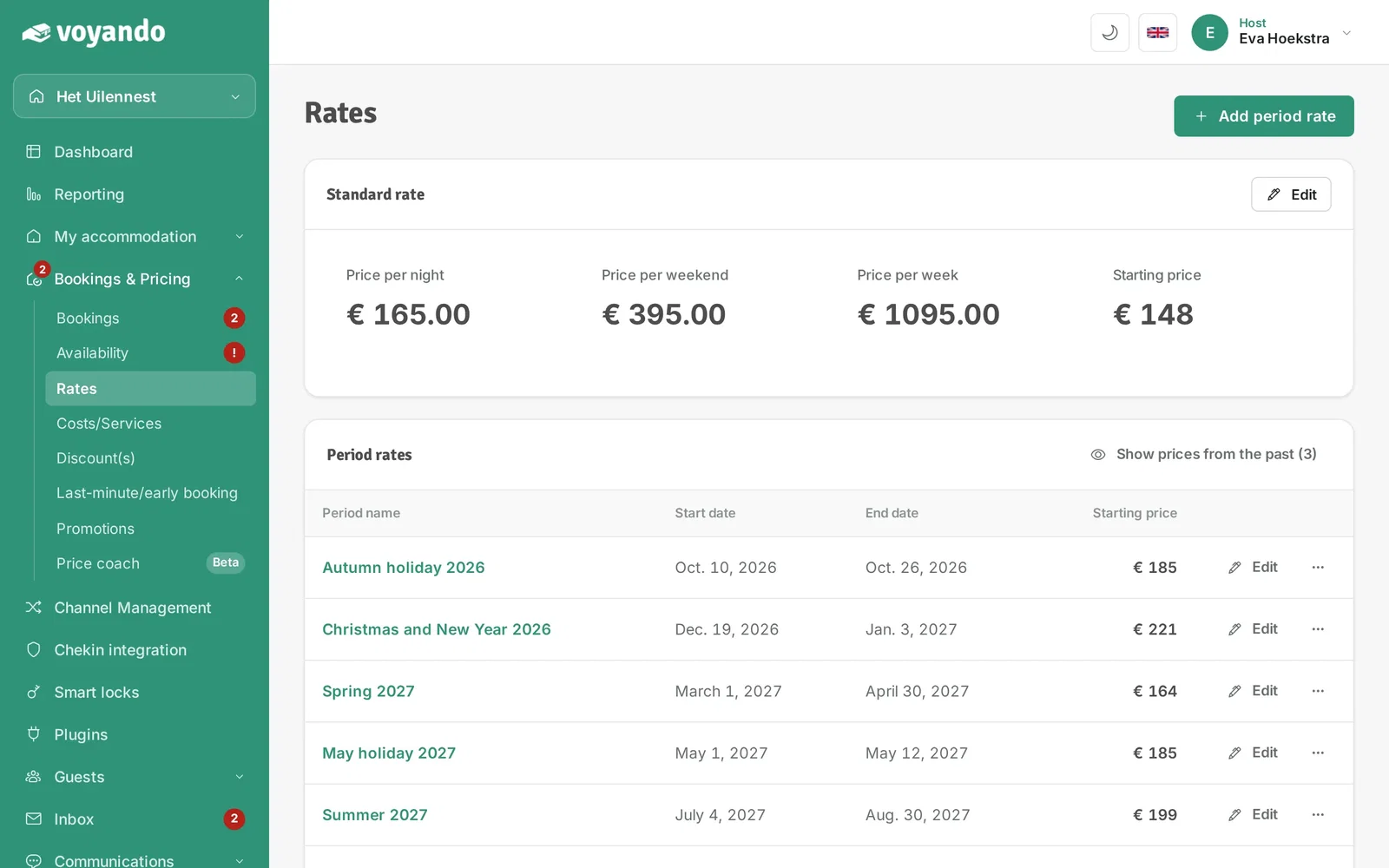
    How can I change the check-in and check-out dates? – step 4: Want to change the days of your standard rate? Click Edit next to Standard rate.
  5. Step 5: For a specific period, first find or create the period rate. Then click Edit next to that period.
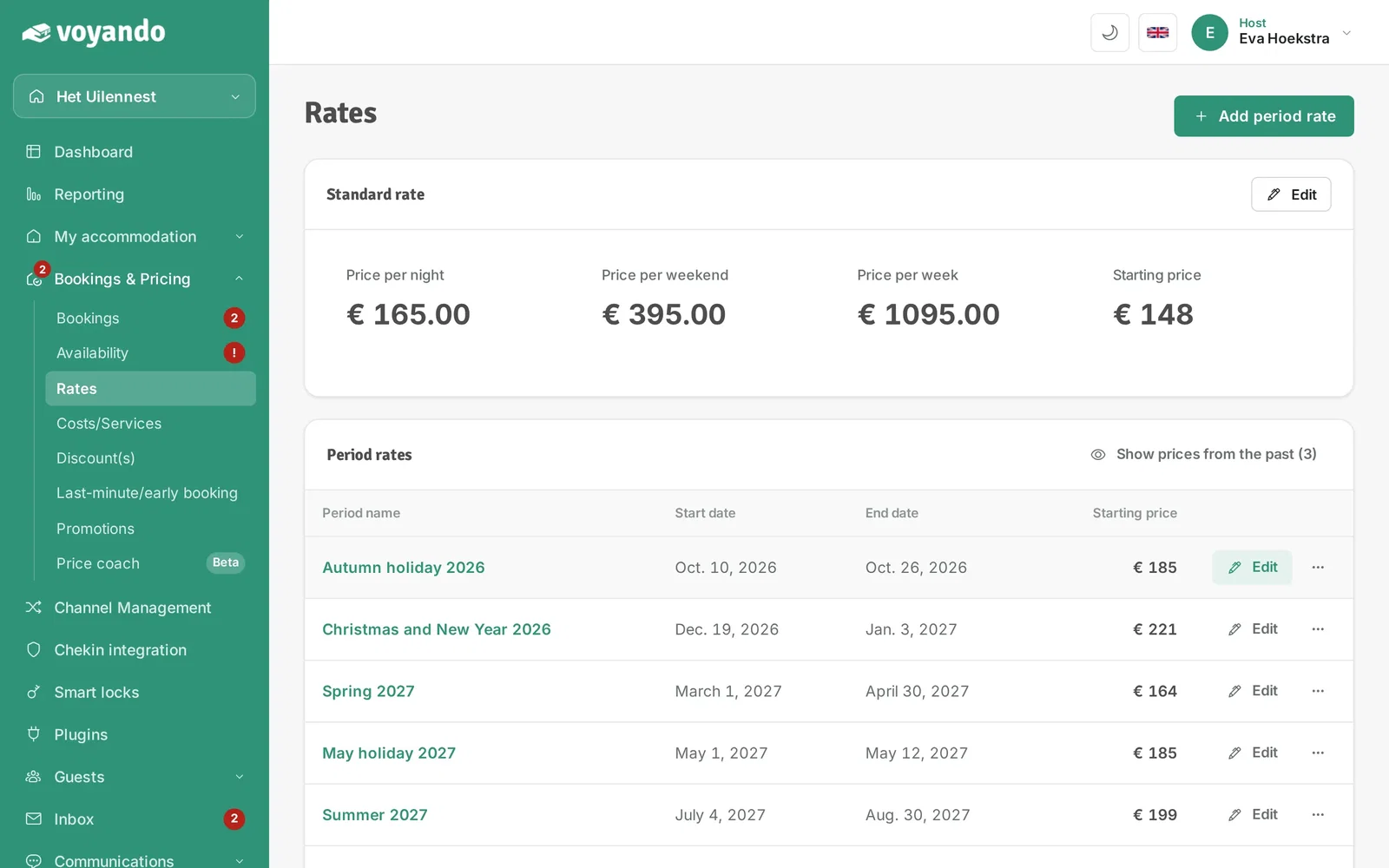
    How can I change the check-in and check-out dates? – step 5: For a specific period, first find or create the period rate. Then click Edit next to that period.
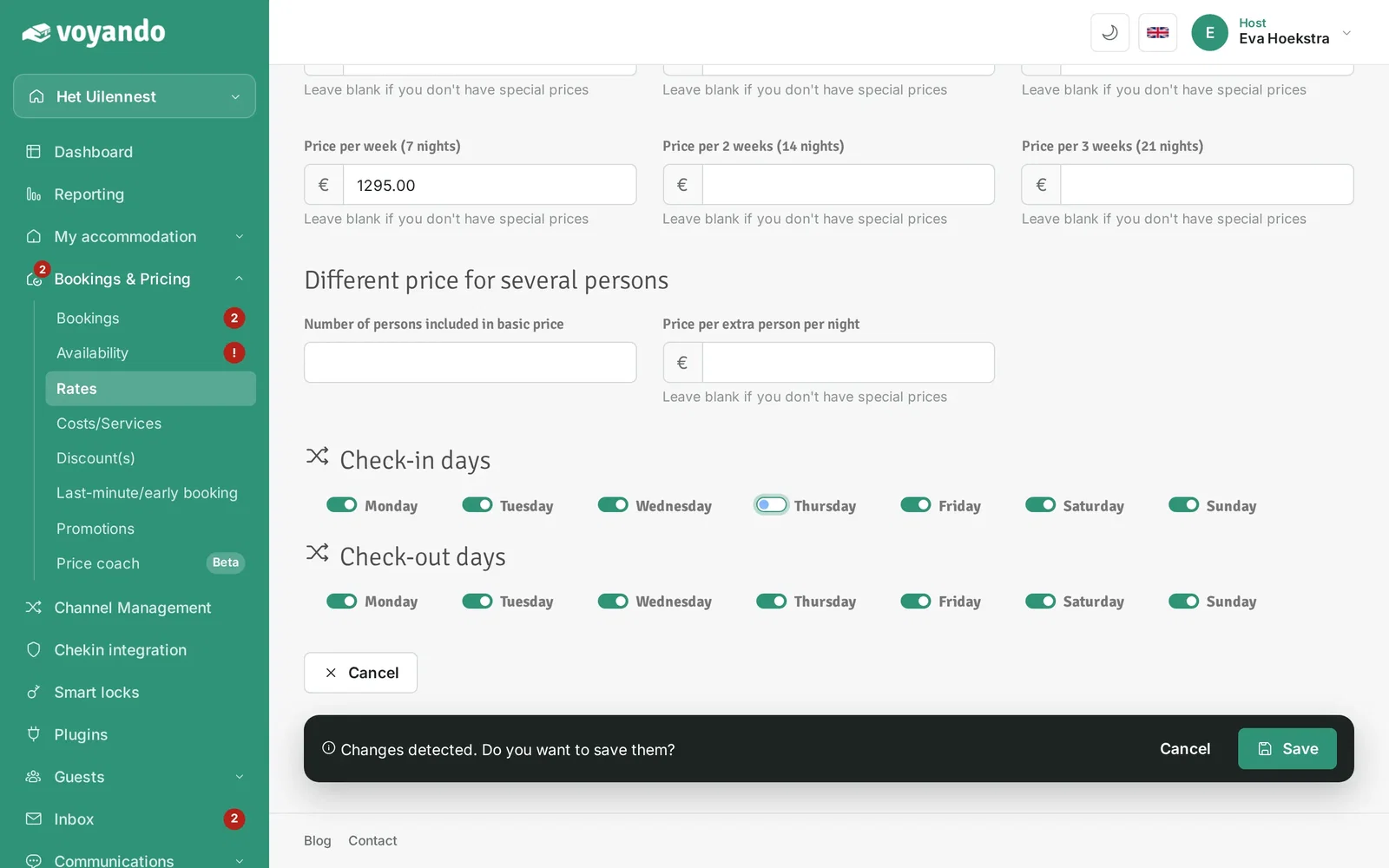
  6. Step 6: At the bottom of the page, under Check-in days, switch on the days on which guests may arrive.
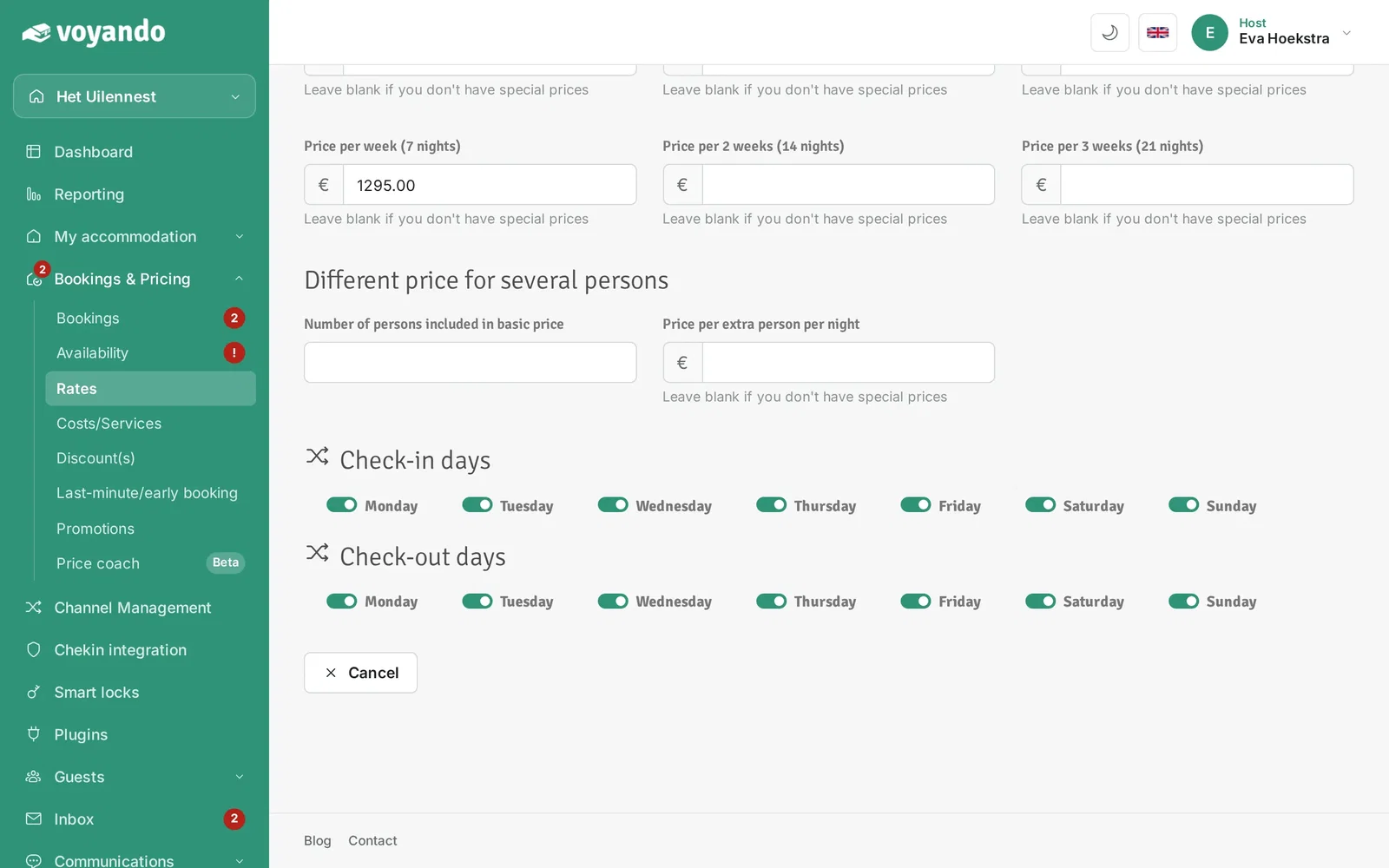
    How can I change the check-in and check-out dates? – step 6: At the bottom of the page, under Check-in days, switch on the days on which guests may arrive.
  7. Step 7: Switch a day off, for example Thursday, if guests may not check in on that day.
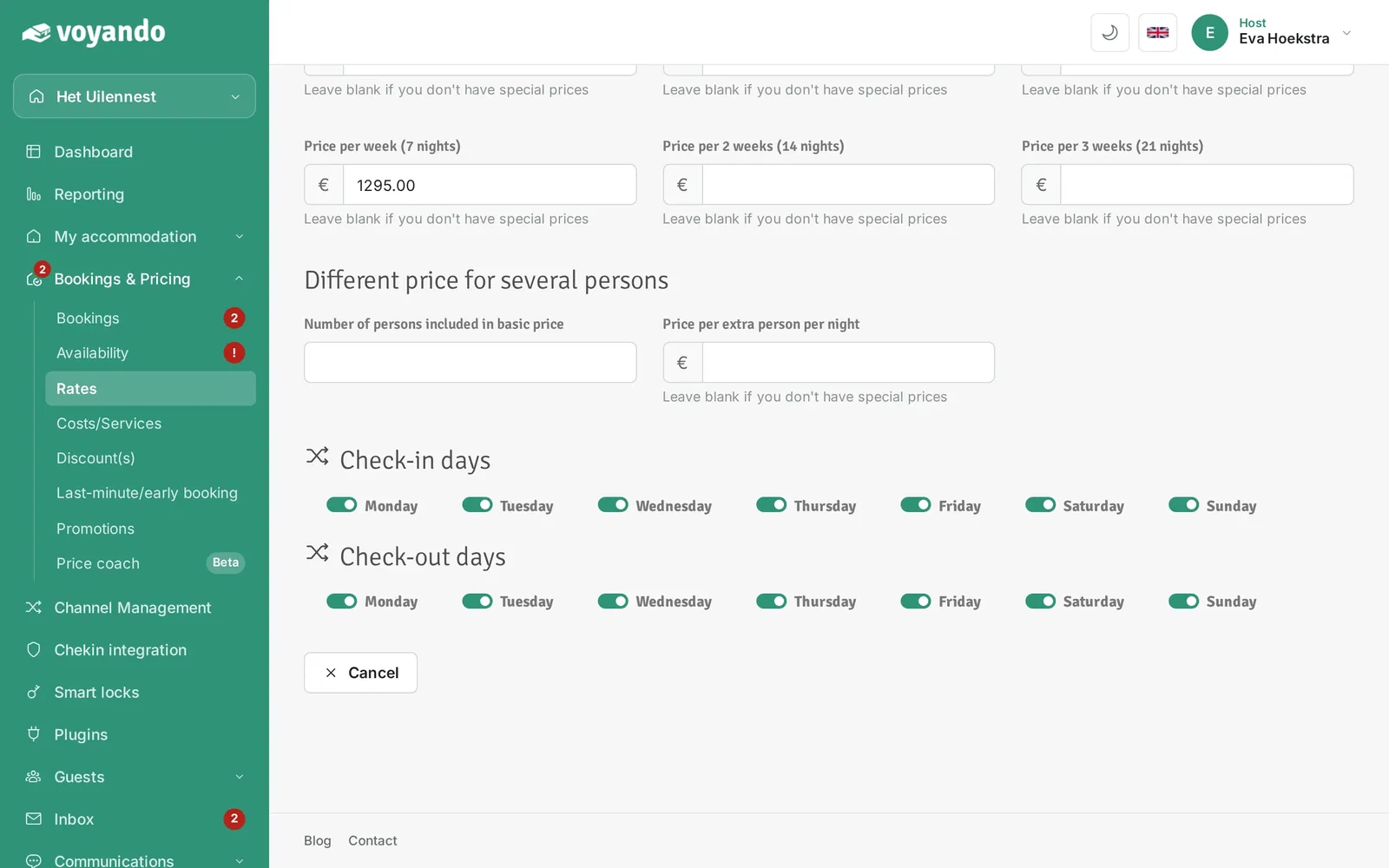
    How can I change the check-in and check-out dates? – step 7: Switch a day off, for example Thursday, if guests may not check in on that day.
  8. Step 8: Under Check-out days you do the same for the departure days.
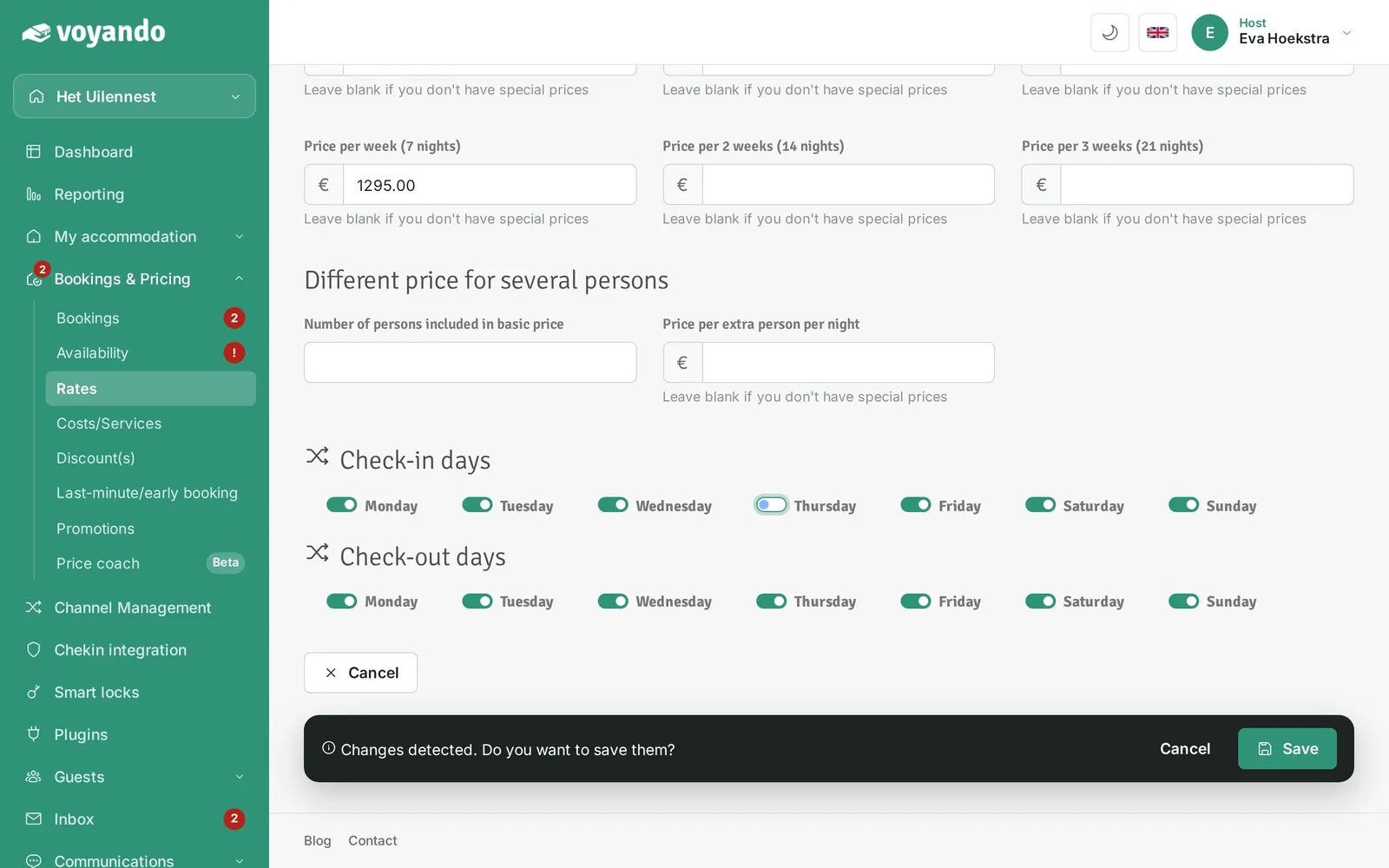
    How can I change the check-in and check-out dates? – step 8: Under Check-out days you do the same for the departure days.
  9. Step 9: Click Save.

    How can I change the check-in and check-out dates? – step 9: Click Save.
Try for free Demo
Free webinar

Earn up to 15% more with your accommodation

Watch our free webinar with practical tips for more direct bookings and a better price. Leave your email address and you can watch straight away.

Or try Voyando right away 30 days free.